5 Add an object property and Action to save the LLM response (used in Chapter 6)
26.1106 09:33 (converted from docx source file to markdown+PNGs by ChatGPT)
5.0 What we will build
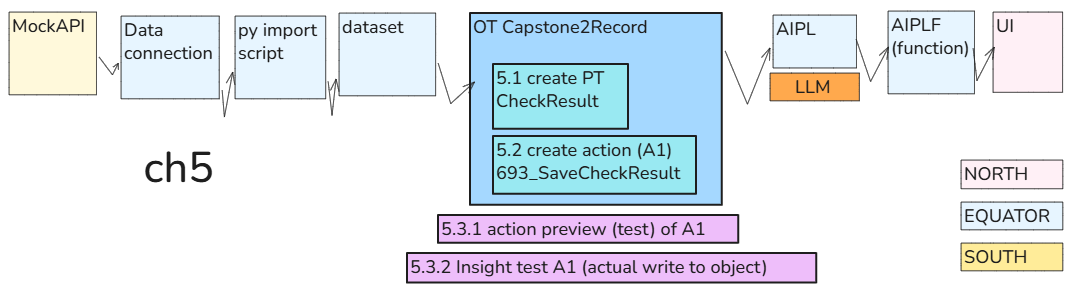
In Chapter 6:
- AI checks a selected Capstone2Record object using the supplied criteria.
-
The LLM text response (FOUND, NOT FOUND, etc.) is saved in that object’s CheckResult property using 693_SaveCheckResult. In this chapter, we prepare and test the saving operation:
- 5.1 Add the CheckResult property to the Capstone2Record object type.
- 5.2 Create the 693_SaveCheckResult Action to save a String in CheckResult.
- 5.3 Test the Action using manually entered test text.
Select an object + enter test text
→ run 693_SaveCheckResult
→ test text saved in that object’s CheckResult property
5.1 Add OT Capstone2Record PT CheckResult (to save text)
Add an edit-only String property named CheckResult to Capstone2Record.
5.1.1 Create property CheckResult
We’ll configure CheckResult as a single String supplied through edits—not as another column imported from MockAPI.
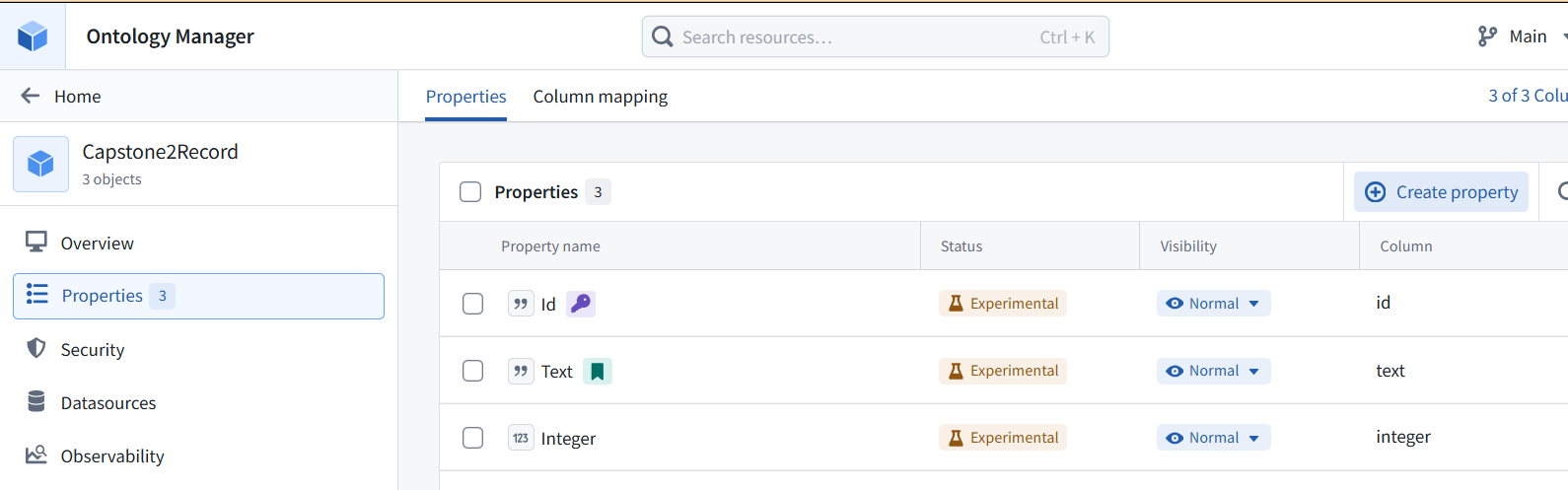
- Open Ontology Manager → Capstone2Record → Properties.
- Click Create property.
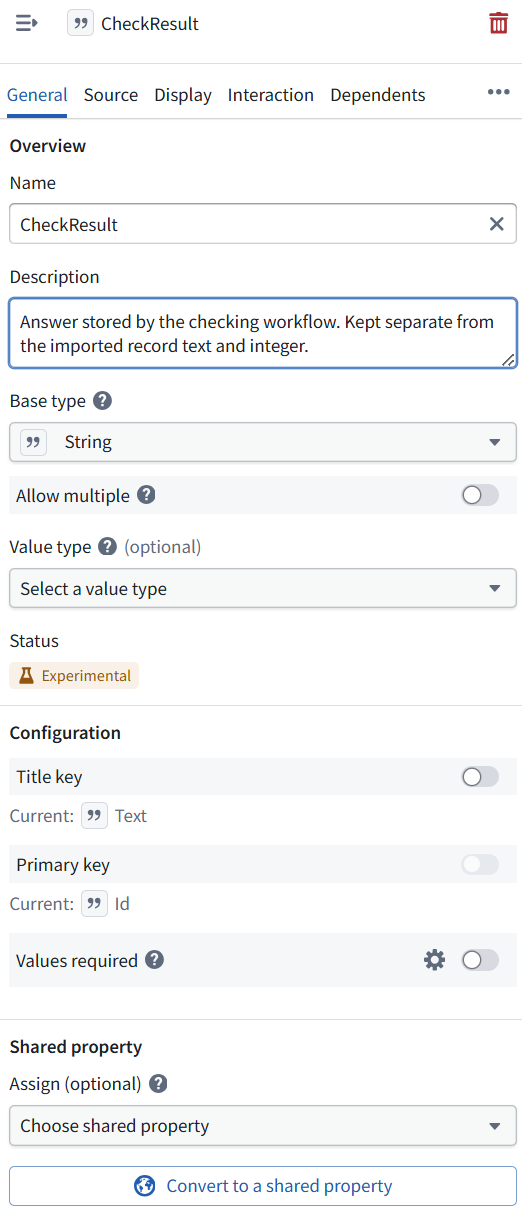
- Set:
- Name: CheckResult
- Description: Answer stored by the checking workflow. Kept separate from the imported record text and integer.
- Base type: String
- Allow multiple: OFF
- Values required: OFF—unchecked records can have no answer.
5.1.2 Allow edits (saving values) for the ObjectType
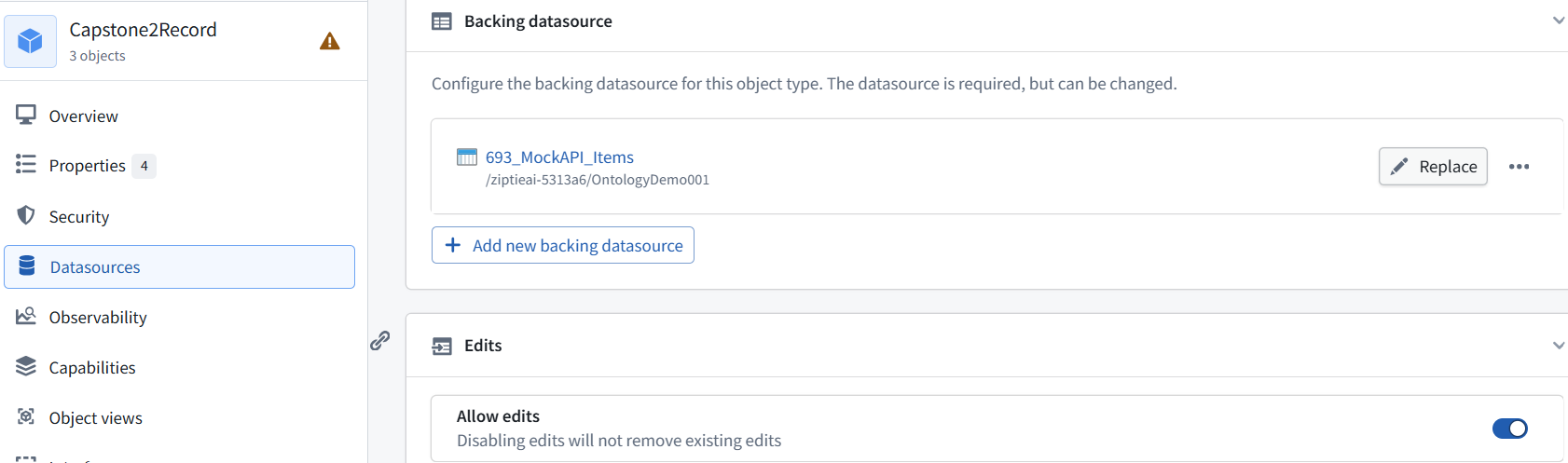
- Click Datasources in ObjectType1’s left navigation—here, the object type is Capstone2Record.
- Find Edits → Allow edits.
- Turn Allow edits ON. This permits Actions to write object values. It does not change any record or enable inline editing in the UI.
5.1.3 Save the OT changes
- Click Save in the top toolbar.
- Review the changes (add CheckResult and enable edits on Capstone2Record).
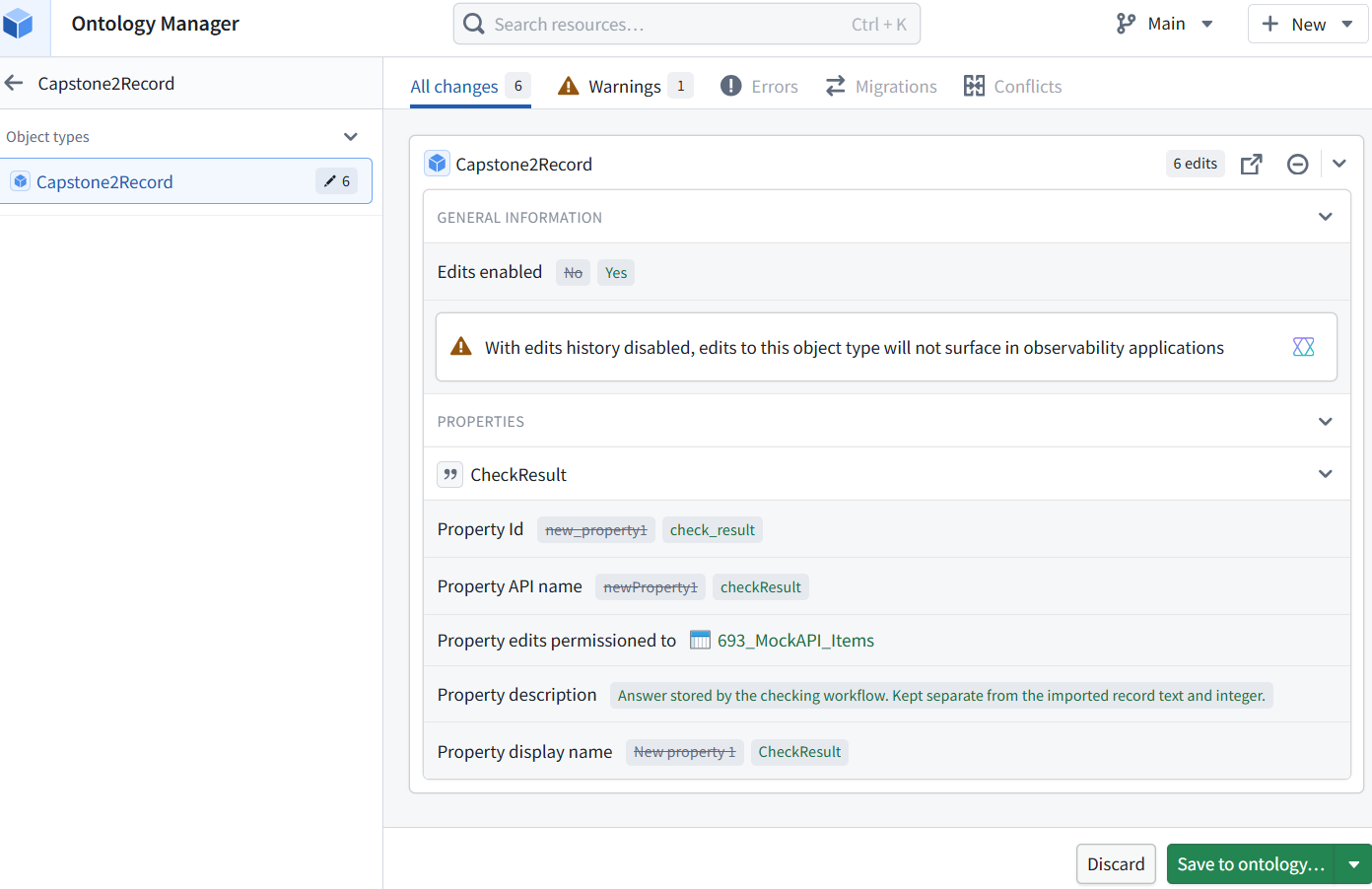
- If no errors appear, click Save to ontology….

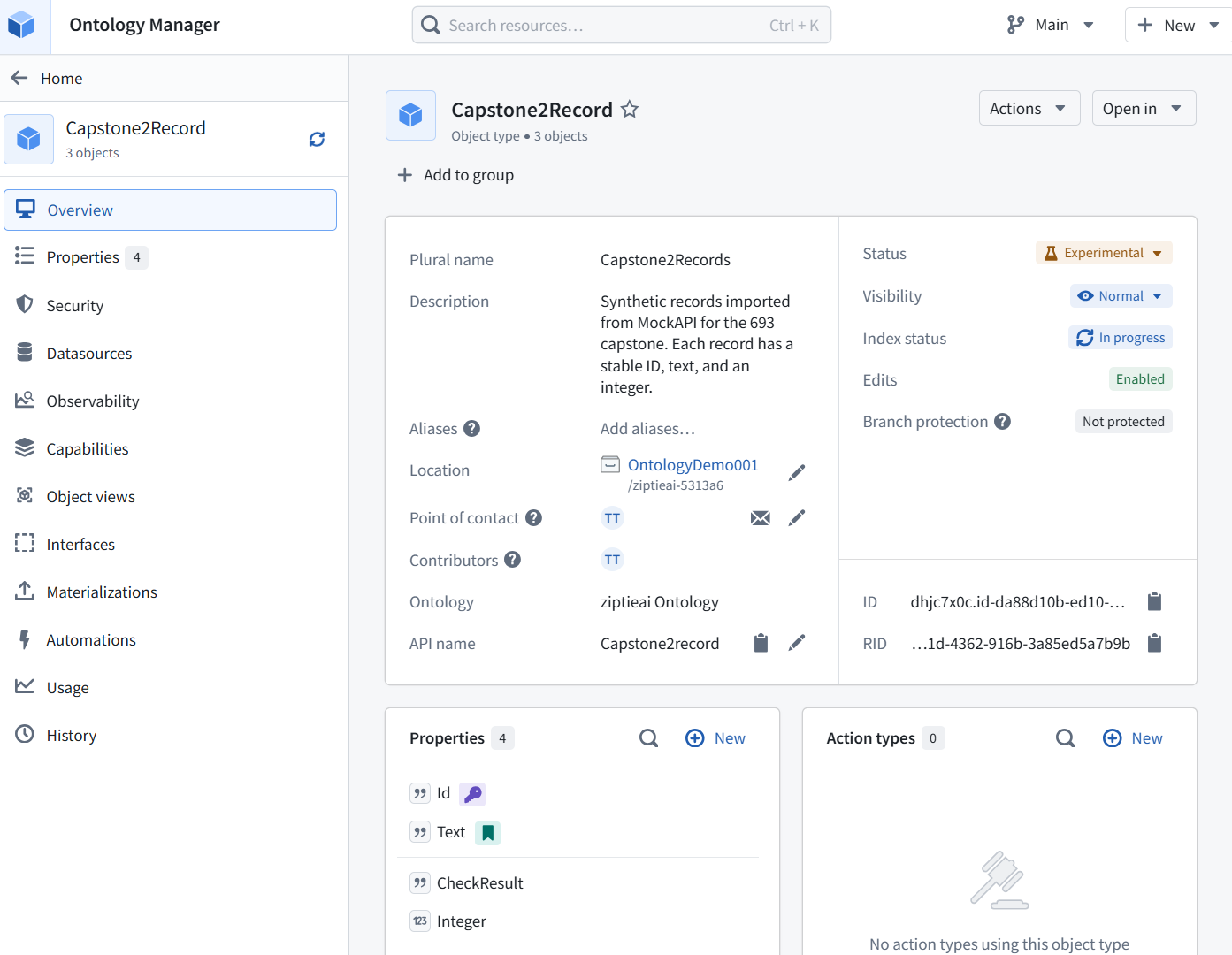
5.2 Create the 693_SaveCheckResult Action to save a String in CheckResult
5.2.1 Create an Action
The action receives one record and answer text, then writes that text into CheckResult.
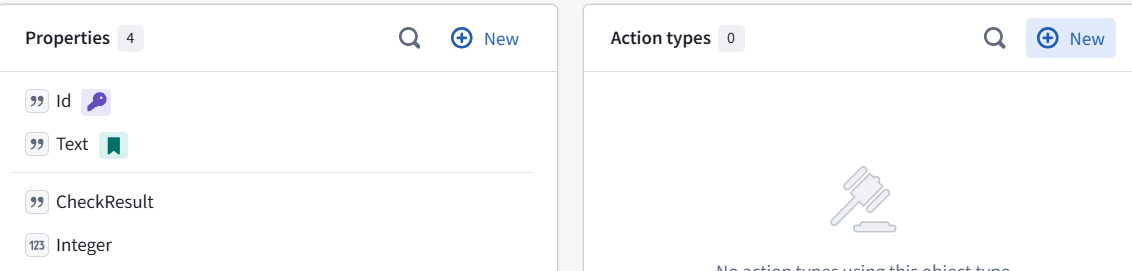
Click + New → Action type.
- On the Object tab:
- Object type: Capstone2Record
- Operation: Modify object(s)
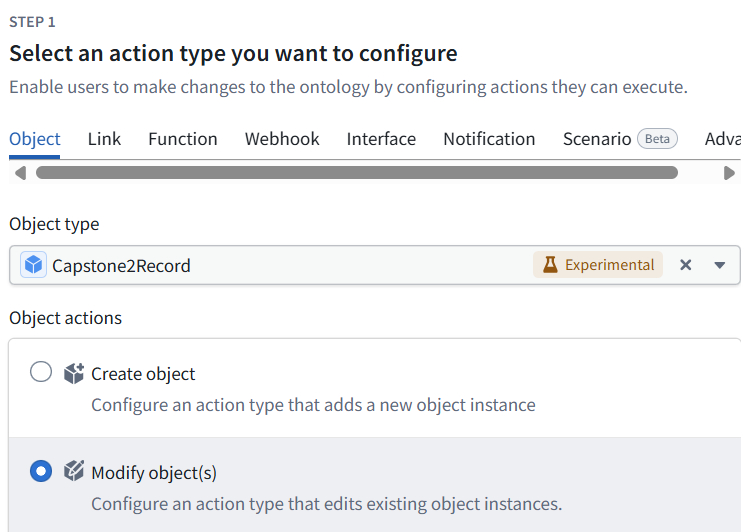
- Click Next.
- Under Mapping, click Add property → CheckResult.
- Left CheckResult: the stored property.
- Right CheckResult: the input text to write into it (Left CheckResult).
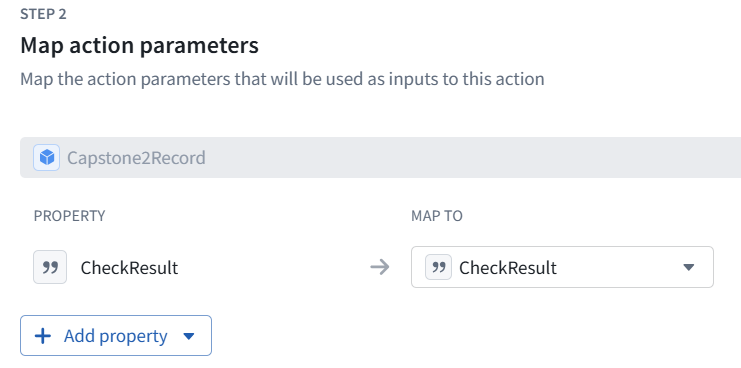
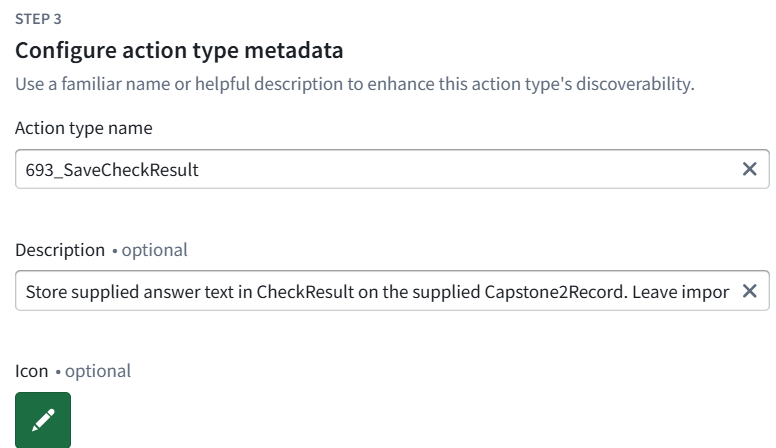
Click Next and enter:
- Name: 693_SaveCheckResult
- Description: Store supplied answer text in CheckResult on the supplied Capstone2Record. Leave imported properties unchanged.
Continue with:
- Who can submit: Organization → ziptieai
- Save location: OntologyDemo001 Finish the wizard, but do not finalize the Ontology save yet. Open Parameters → CheckResult and send its settings. We’ll make the answer input required before saving.
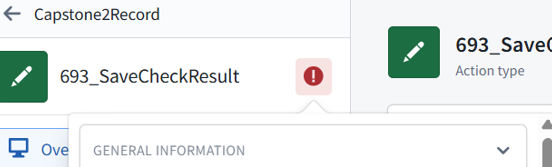

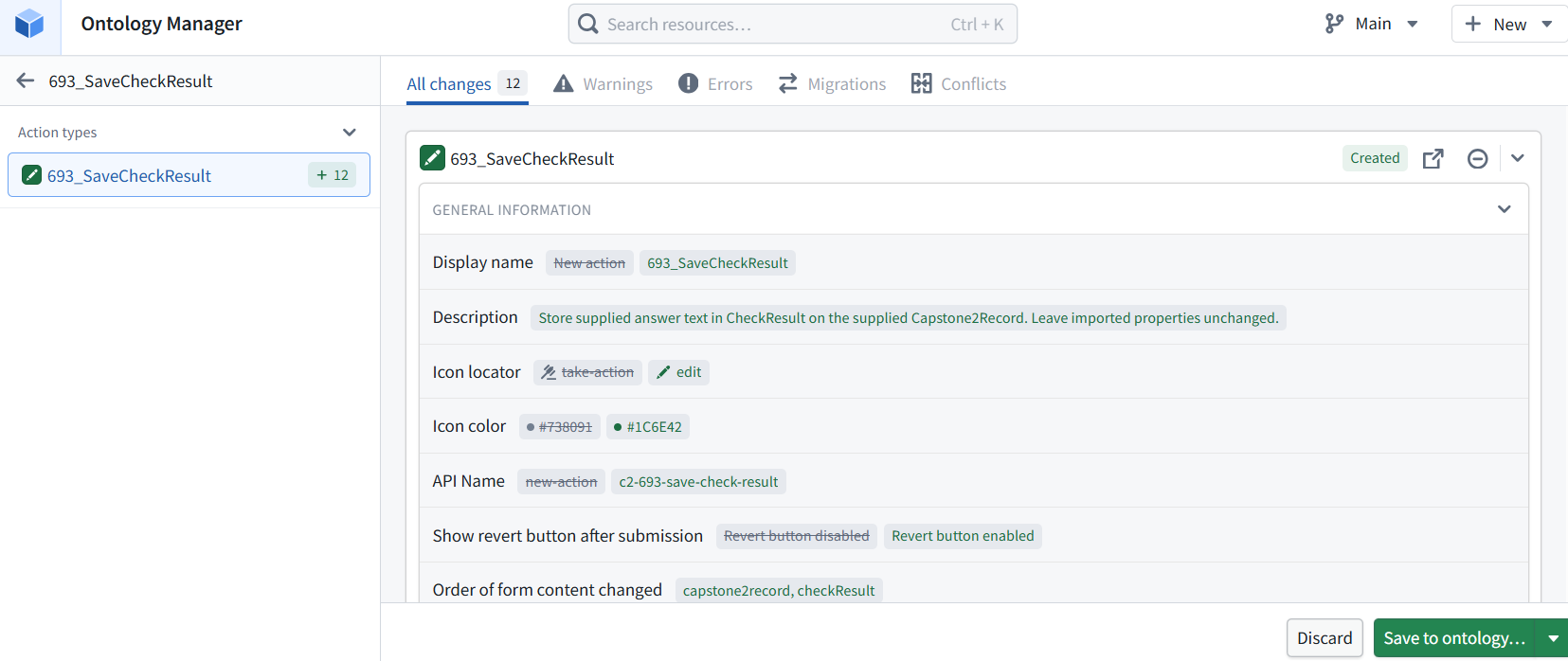
5.2.2 Correct the API name
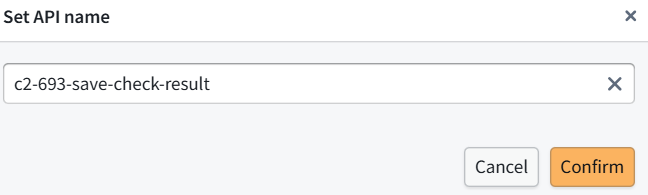
The Action’s generated API name is invalid. Its displayed name can keep the 693_ prefix, but use a letter-first, lower-kebab-case API name.
- Dismiss the warning popup.
- On Overview, find API name and click its pencil.

Replace 693-save-check-result with:
capstone2-save-check-result
c2-693-save-check-result

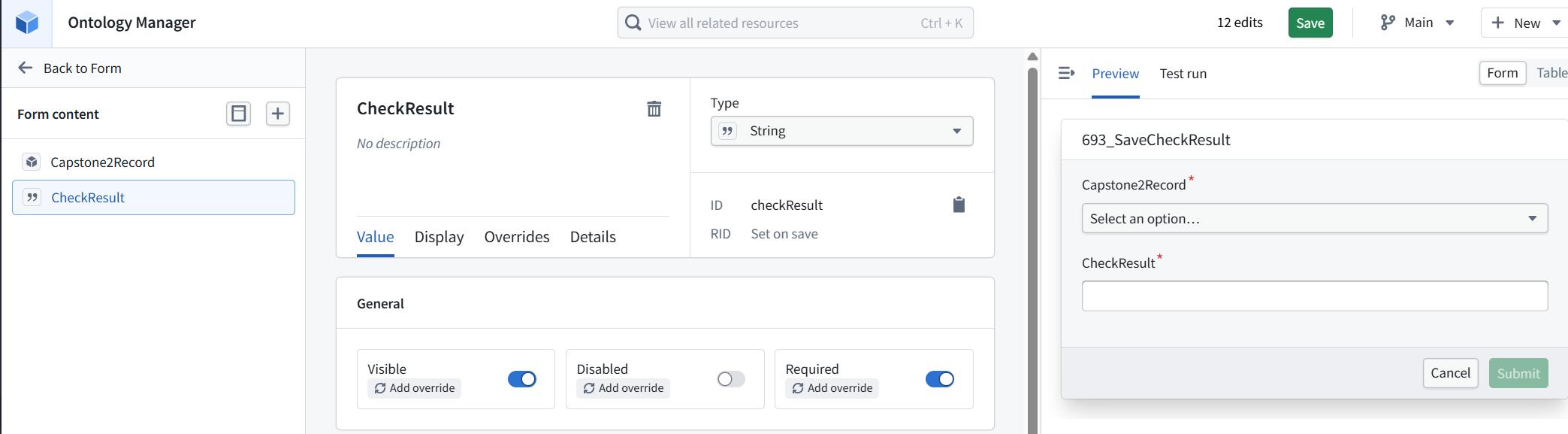
5.2.3 Verify Required ON
Then open Parameters → CheckResult:
- Required: ON
- Visible: ON
- Disabled: OFF
5.2.4 Save
5.3 Test the Action (using action preview / insight (actual save))
5.3.1 Action preview (no save to object)
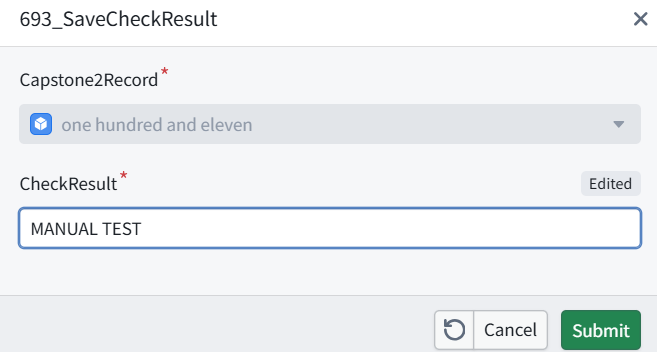
Run it manually and inspect the stored value. Confirm the original record values remain unchanged. Click User Interface in the left sidebar. We’ll use its Test run tab to supply record Id 1 and MANUAL TEST, run the Action, and then verify the stored value.
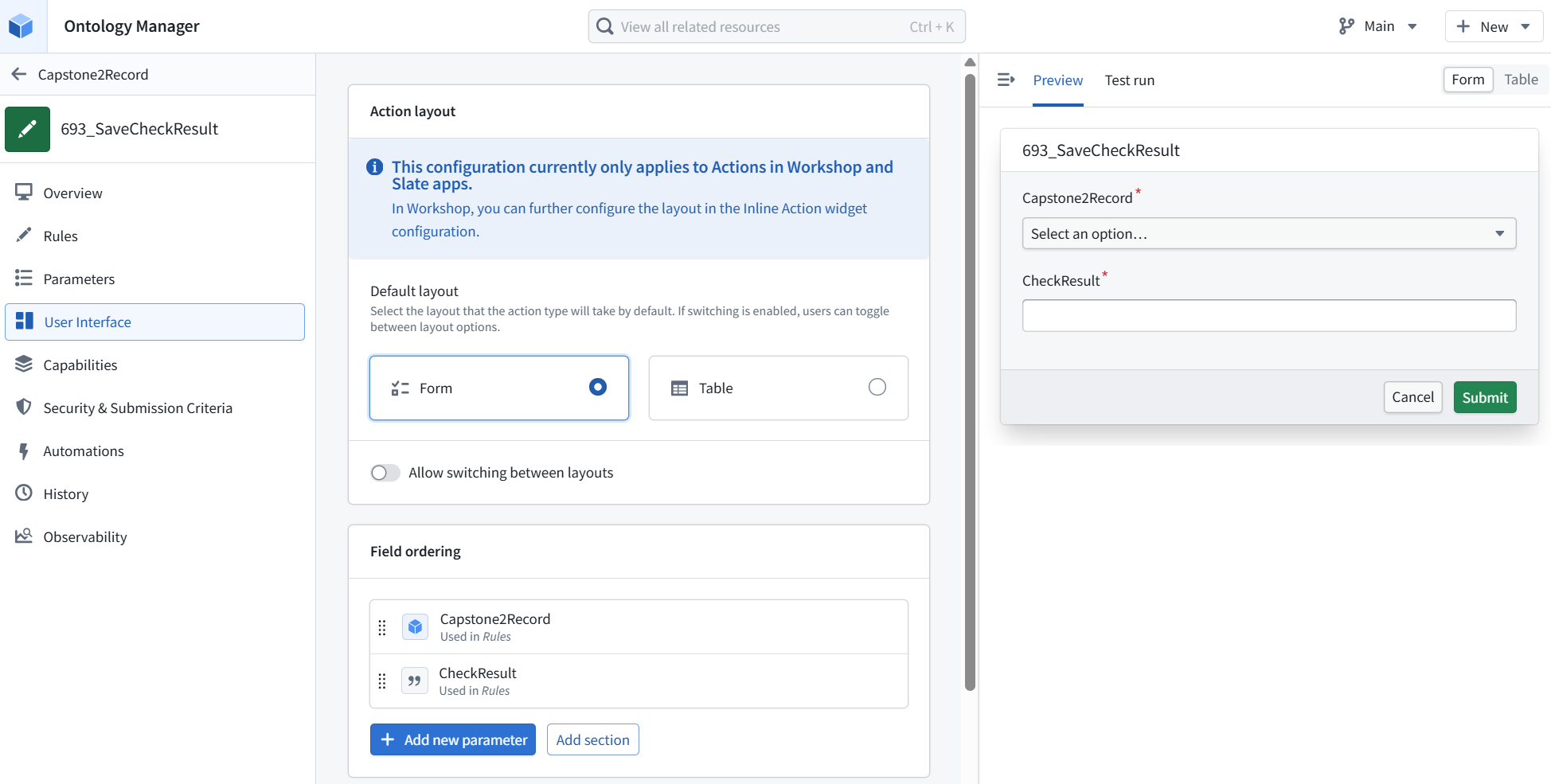
The Test run tab displays test results; the form is under Preview.
- Select the record with Id 1.
- Enter MANUAL TEST in CheckResult.
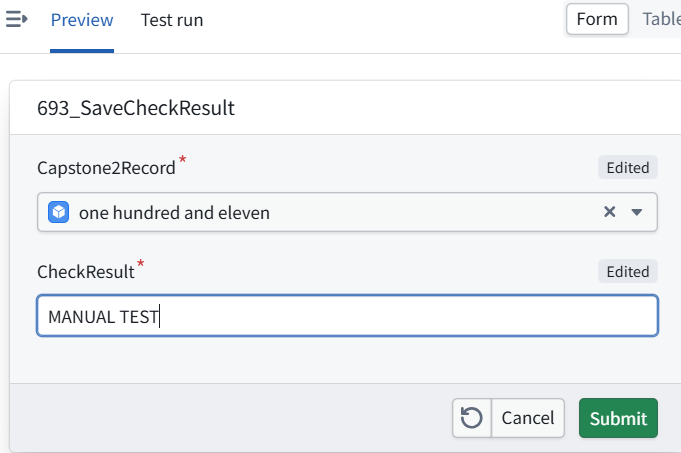
- Click Submit, then inspect Test run. We’ll check the result before treating this as proof that the value was permanently stored.
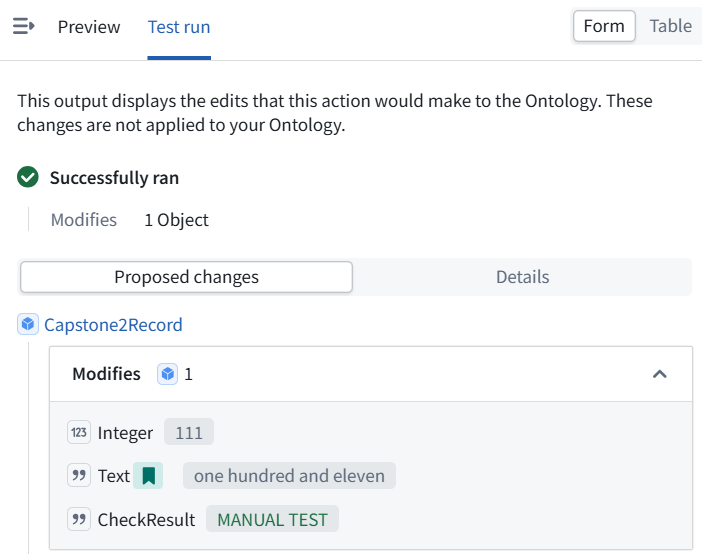
The test passed—but nothing was saved. The notice explicitly says these changes are not applied to the Ontology. The proposed result is correct:
- CheckResult: MANUAL TEST
- Text: one hundred and eleven (unchanged)
- Integer: 111 (unchanged)
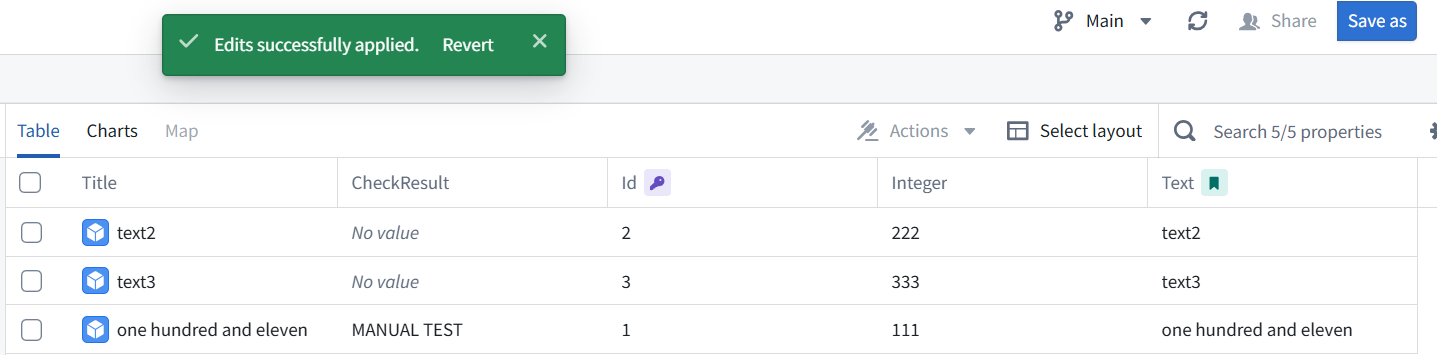
5.3.2 Insight test (actual save to object)
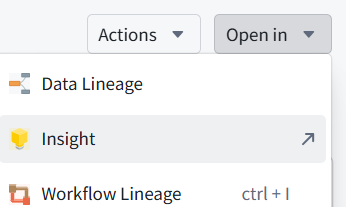
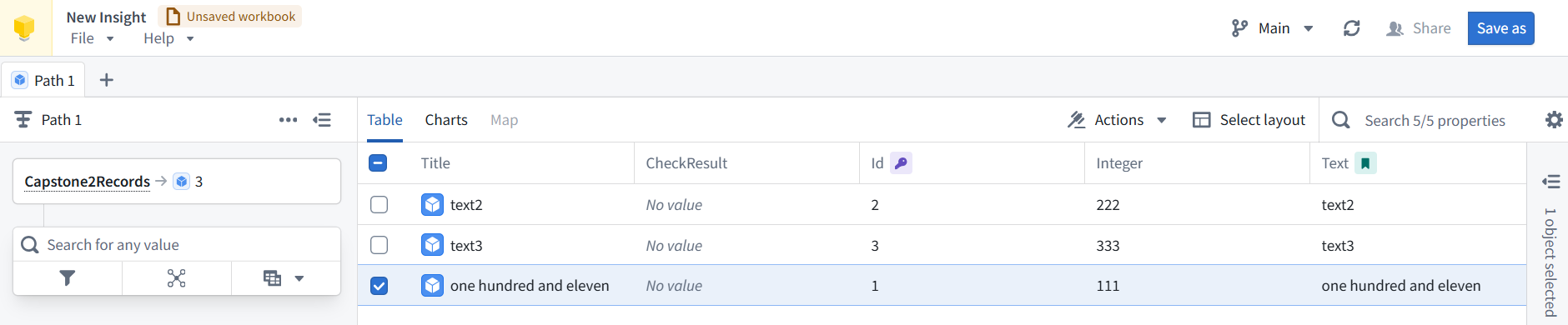
To finish 5.3, we still need to run the Action on the actual object and verify storage. Return to Capstone2Record using the upper-left back link, then open its Open in menu so we can access the objects.