Foundry Quick Start (v03 26.1107)
For the latest QS version see docx #693.
- This QS is a work in progress (WIP).
- The main goal of this QS is accuracy and usefulness (that means constant updates). Something that a reader can use to learn Foundry.
- Constant updates is best assured with markdown/PNG’s (pics) extracted from the 693 docx source file by GPT.
- I copy/paste the md/png’s into this website manually. I do not modify the contents. My goal is to ensure that the content is single-source and that source is only the docx file.
- The PNG sizing is difficult for GPT to get right (GPT does adjust the width of the PNG based on text in the PNG; the result is an improvement, but I need to “hardcode” the width (in my docx file) to get things right).
TOC
- What makes this the best first demo for Foundry
- Configuration / workflow diagrams
- 0 First steps
- 1 Fetch MockAPI records and display in UI (“Workshop”)
- 2 Create (1) AIPLF to detect matching digits in object text/integer properties / (2) UI to display result
- 3 Modify AIPL prompt to detect matching letter-only-text and integer-digits (display result in UI)
- 4 Enter AI matching criteria (configure only AIPL+F and UI)
- 5 Add an object property and Action to save the LLM response (used in Chapter 6)
- 6 Add a text-save action (A1) call in AIPL / create AIPLF / create action (A2) to call AIPLF (use in Ch7)
- 7 Add automation (“(new) object added to set” inits automation)
- 8 Schedule MockAPI DATASET import / Add new Capstone2Record / Trace automation
- 8a Governance: allow, block, verify
- 8b Where these mechanics could be used
- 9 Where to go from here
Workflow diagram for ch1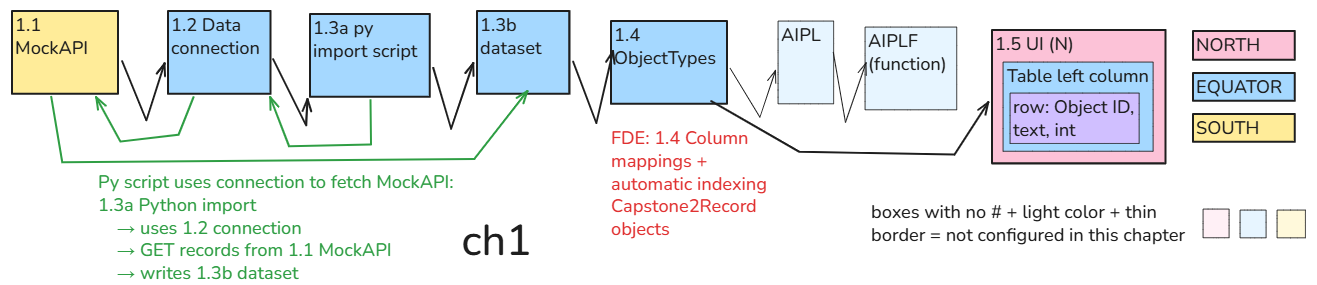
Notes
The FDE-generated text is factual, but for a human reader at times difficult to understand. After finishing the demo setup and test, I redid the H1 headings (it was a long discussion with FDE, but basically all of my corrections were needed and correct except for one mistake).
I also created diagrams to summarize the setup workflows. FDE can “see” these diagrams and is quite good at making useful suggestions or catching errors.
PROMPT FOR GPT TO CONVERT DOCX source file to create md/png’s for this website
The core goal of the conversion is to avoid any modification of content in the markdown file (I would have to copy such mods into the docx file if the docx was to remain the source). I make small adjustments to this constantly, but this is the boilerplate version. Created with GPT’s help (GPT recommended this kind of prompt).
GPT prompt v05 26.1106 17:08

1 Convert attached docx to markdown's + png's.
Only convert the H1 sections before "==============="  (11 total)
(up to but not including chapter "Generating webpage markdown+png's from this docx").

2a Split each H1 into a separate markdown file.
Name the files
•	0a_best_demo
•	0b_first_steps
•	1_mockapi
•	2_ailpf
•	3_aipl_prompt
•	4_criteria
•	5_property_action
•	6_a1_a2
•	7_automation
•	8_schedule
•	9_where_next

2b FOR THIS CONVERSION ONLY CONVERT
•	2_ailpf
•	3_aipl_prompt
•	4_criteria

Return a zip file.
PNG's in subdir \assets\qs.

3 The main goal of this docx to md/png conversion
I want to generate md files from the docx that I dont have to manually edit.
The goal is to be able to regenerate an update quickly.
And the docx is the only place i make edits.
i will still want to get md/png's from you (GPT)
(and copy the md/png's manually into my jekyll project).
But i want to avoid adding any intelligent content in the md file.

Any proofreading or stylistic improvements should not be done during this conversion.
Do not rewrite, summarize, correct, reorganize, or add explanatory content. Preserve the original DOCX wording exactly, except for formatting changes required for Markdown. If something is ambiguous, preserve the original rather than guessing.


3b Chapter table of contents

Create a TOC near the beginning of each Markdown chapter, immediately before the first H2 heading.
- Include every H2 and H3 heading in the chapter, in document order.
- Use a nested bulleted list: H2 at the first level, H3 indented beneath its parent H2.
- Preserve the original heading numbers and text exactly.
- Make each TOC entry bold.
- Make each TOC entry a clickable Markdown link to its corresponding heading on the webpage.
- Use the actual generated heading anchors compatible with Jekyll/GitHub-style Markdown.
- Do not include H1 or H4 headings.
- If there are no H3 headings, list only H2 headings.
- Do not add invented or placeholder headings.
- Put **TOC** immediately above the list.
- MAKE SURE THERE IS A <br> between the TOC and the first H1

Generate explicit, stable heading IDs for H2 and H3 headings, and link TOC entries to those IDs.
The IDs must remain consistent when regenerating the Markdown, provided the heading numbers remain unchanged.

Generate stable heading IDs using explicit HTML anchors
immediately before each H2 and H3 heading,
in the format <a id="section-4-0"></a>.
Do not use {#section-4-0} syntax.
Ensure every TOC link matches its heading anchor exactly.

For example,
your Chapter 6 TOC would look like this (illustrating the structure with shortened headings):
TOC
•	6.0 What we will build
   o	6.0.1 Example H3
•	6.1 Add text-save action
•	6.2 Test AIPL text save
•	..................

The H3 above is just an illustration, not something to insert into the actual chapter.

4 Conversion date/time (always, even when only generating markdown)
At the top of each Markdown file, insert the actual local date and time
when the Markdown file was generated, using Eastern Time (America/New_York).
Format: YY.MMDD HH:mm (converted from docx source file to markdown+PNGs by ChatGPT)
ALSO: Italicize the text (with _xx_).
Example: _26.1106 14:22 (converted from docx source file to markdown+PNGs by ChatGPT)_
Always regenerate this timestamp when updating or regenerating the Markdown file.
Do not reuse a timestamp from an earlier conversion.

5 Heading formats docx / markdow
•	H1 / ## **xxx**
•	H2 / ### **xxx**
•	H3 / #### **xxx**
•	H4 / **xxx**
Add <br> followed by a blank line before each H1–H4 heading. Do not insert <br> inside lists, tables, or code blocks.

6 Convert images to png.
png file names 0a_01.png, 0a_02.png, ... 0b_01.png, 0b_02.png, etc
Image tag:   <img src="/assets/qs/xxx.png" alt="alt" width="50%" style="border: 1px solid #999;">
For the value of "width=", use your best judgement (if you are not sure just use 50%).

Number images sequentially within each chapter, in their original DOCX order. Never reuse an image filename for a different image within the same conversion.

7 Image display sizing
- Examine each screenshot individually.
- Identify the largest text appearing anywhere inside the screenshot.
- Adjust the HTML width="xx%" so that this largest text appears approximately the same size as normal, non-heading webpage body text (about 16px).
- Smaller text within the screenshot may appear smaller than normal webpage text.
- Prefer slightly undersized images rather than oversized text.
- Do not resize the PNG itself; change only the HTML width percentage.
- If width=35 (or another number) appears immediately before the image in the DOCX, use that percentage exactly and skip automatic sizing.
- Do not include the width=35 instruction itself in the generated Markdown.


8 Use very simple format for tables (no special background or coloring).
keep tables compact with no line between rows.

9 Paragraph formatting, indentation, bullets, and spacing

Preserve the original DOCX paragraph formatting as closely as Markdown allows.
- Preserve paragraph grouping. Do not turn each line or sentence into a separate paragraph.
- Preserve manual line breaks within paragraphs when intentional.
- Preserve indentation and nested levels, including arrow-based workflow sequences.
- Preserve bulleted and numbered lists as actual Markdown lists, including nested bullets.
- Keep consecutive list items together with no blank lines between them. Use a blank line before and after each list.
- Do not insert blank lines between lines of a workflow sequence. Use a fenced plain-text code block for aligned, indented, or arrow-based sequences when needed to preserve formatting.
- Preserve bold and italic formatting within paragraphs and list items.
- Preserve code, JSON, and other preformatted text using fenced code blocks with original indentation and line breaks.
- Do not add extra vertical spacing between individual list items or workflow steps.
- Do not flatten lists, remove indentation, or add paragraph breaks that were not present in the original.
- Prioritize matching the original DOCX visual structure over simplifying the Markdown.

Markdown bullet-list boundaries:
- Always insert one blank line between the end of a bullet or numbered list and the next normal paragraph.
- Do not insert blank lines between consecutive items within the same list.
- Preserve the DOCX paragraph boundaries, even when the DOCX has no empty paragraph between a list and the following text.
- Verify that no normal paragraph is accidentally rendered as part of the preceding list item.
- Preserve nested list indentation and inline bold formatting.

Before returning the ZIP:
- check that workflow sequences, nested bullets, JSON, code blocks, and paragraph spacing preserve the DOCX structure.
- In particular, avoid converting consecutive list items into separate paragraphs.

10. Final verification
Before returning the ZIP:
- Verify that only the requested H1 chapters were converted.
- Verify that all requested text and images are included in their original order.
- Verify that every image reference points to an existing PNG in assets/qs/.
- Verify that all TOC links point to actual headings.
- Verify that paragraph grouping, bullets, indentation, and code formatting are preserved.
- Verify that the conversion timestamp is current.
- Return the ZIP without modifying the original DOCX.
- Report any conversion problems or omissions; do not silently omit content.
26.1106 (v1 26.1104)