7 Add automation ("(new) object added to set" inits automation)
26.1106 09:33 (converted from docx source file to markdown+PNGs by ChatGPT)
was “Check new records automatically”
Add a record in MockAPI and manually fetch the latest data. Verify that the new record is checked and its answer saved without pressing the checking button.
7.0 What we will build
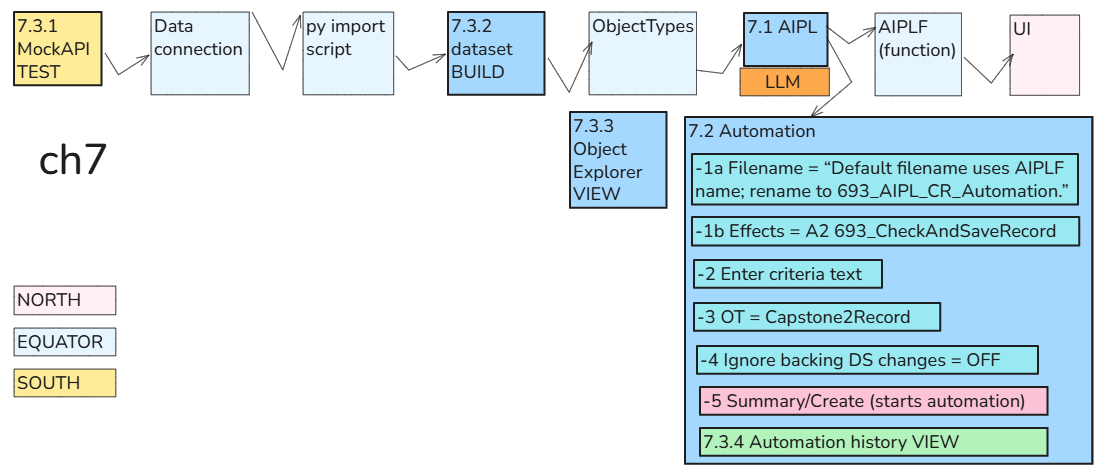
Until now, you selected a record and ran 693_CheckAndSaveRecord manually. We’ll use Automate to run that Action when a new Capstone2Record appears.
For this chapter, use fixed checking instructions:
Match if the integer is greater than 100.
We’ll still fetch MockAPI records manually. Scheduling the fetch comes in Chapter 8.
Chapter 7 is verified and complete.
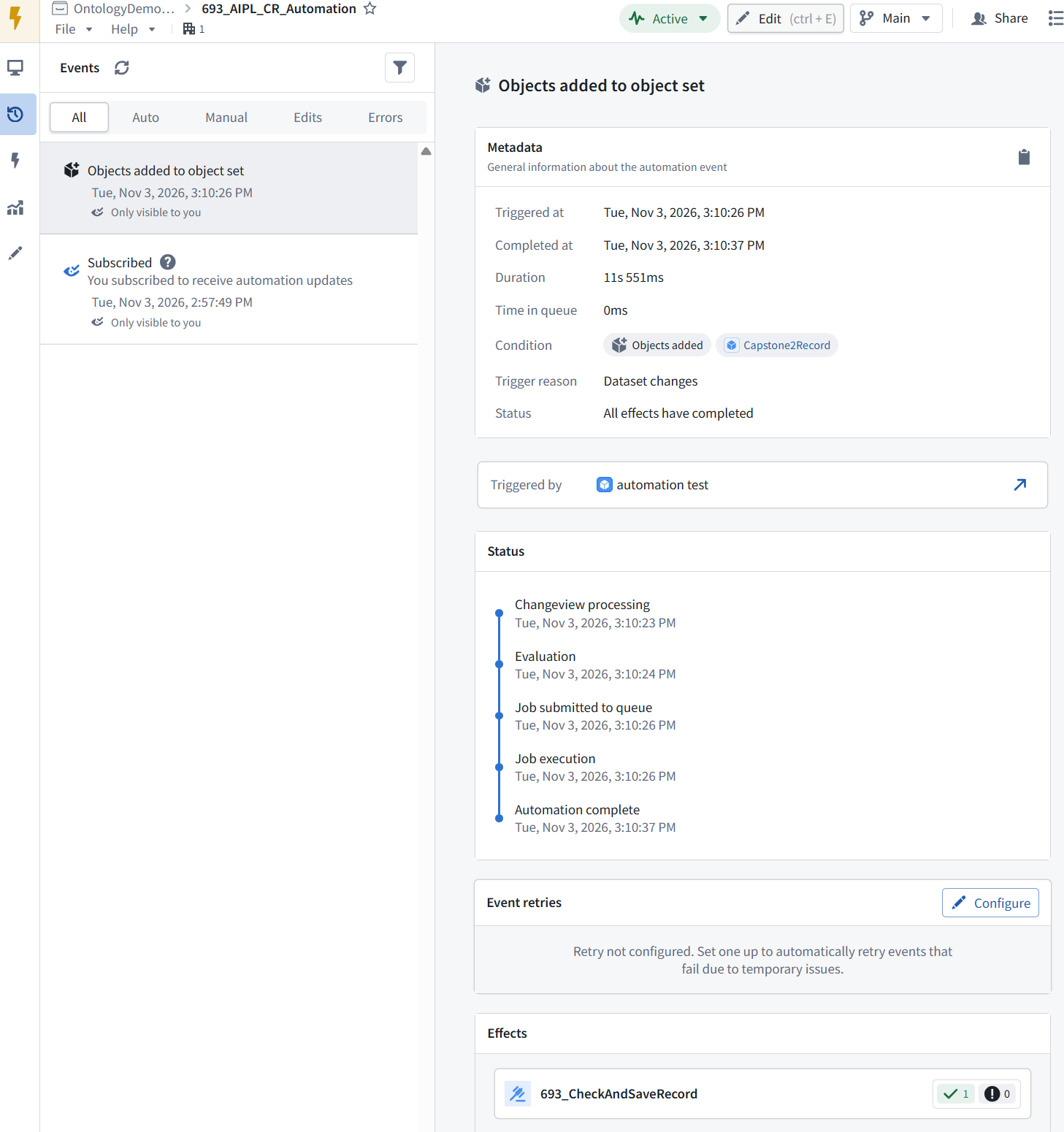
The execution history confirms:
- Trigger reason: Dataset changes
- Triggered by: automation test — the new record
- Status: All effects have completed
- 693_CheckAndSaveRecord: 1 success, 0 failures Manual fetch → new object → automatic AI check → saved CheckResult
You manually fetched the records, but did not manually run the check. The automation detected Id 4 and saved FOUND.
7.1 View AIPL / Usage (from this dialog create AIPLF automation)
Return to 693_AIPL_CheckRecord in AIP Logic and open Usage on the right-hand toolbar.
Show that panel so we can find the automation controls for the published function and its Action.
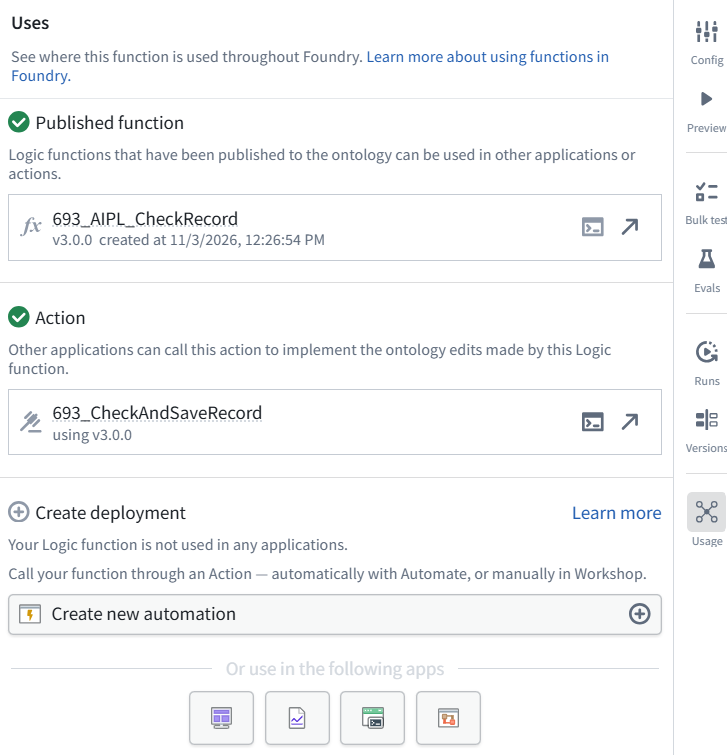
The panel confirms action 693_CheckAndSaveRecord uses function 3.0.0.
7.2 Create the automation 693_AIPL_CR_Automation (auto-activated)
1 Click Create new automation under Create deployment. We’ll configure it for new records only, so updating CheckResult does not repeatedly trigger the same check.
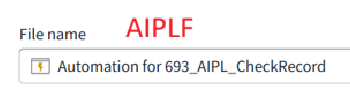
FDE: **AIPLF, version 3.0.0.
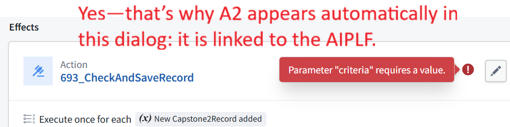
Automate generated that default filename from the function’s name. The automation actually runs **693_CheckAndSaveRecord (A2)**, which calls that AIPLF.
ME: **but i opened the dialog from the AIPL?**
FDE: **Yes—you opened it from AIPL’s Usage panel.** That panel lists the related resources:
- Published function:* AIPLF **693_AIPL_CheckRecord, v3.0.0*
- Action: 693_CheckAndSaveRecord (A2) Create new automation* uses that **A2 Action*. The default filename borrows the AIPLF’s name, even though you started from the AIPL screen.
-1 Overview / Summary / AIPLF and A2
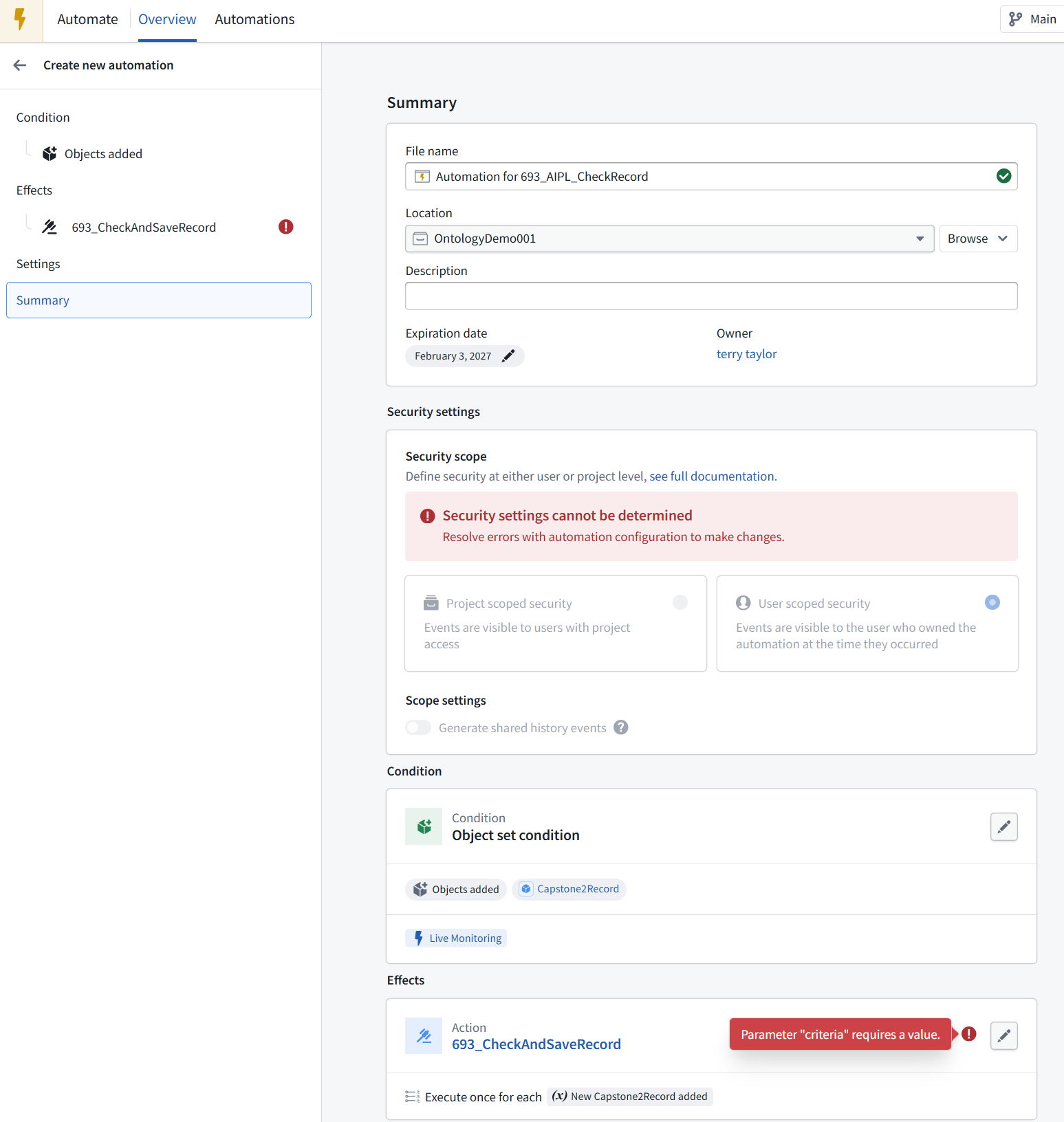
The automation already has the right structure:
- Condition: a Capstone2Record is added.
- Effect: run A2 **693_CheckAndSaveRecord** once for each new record. The red error says the required criteria input is missing.
Click 693_CheckAndSaveRecord under Effects in the left sidebar. We’ll supply:
Match if the integer is greater than 100.
Leave the security settings alone for now—the screen says configuration errors must be resolved before those settings can be determined.
-2 Overview / Effects / A2 / Criteria static value
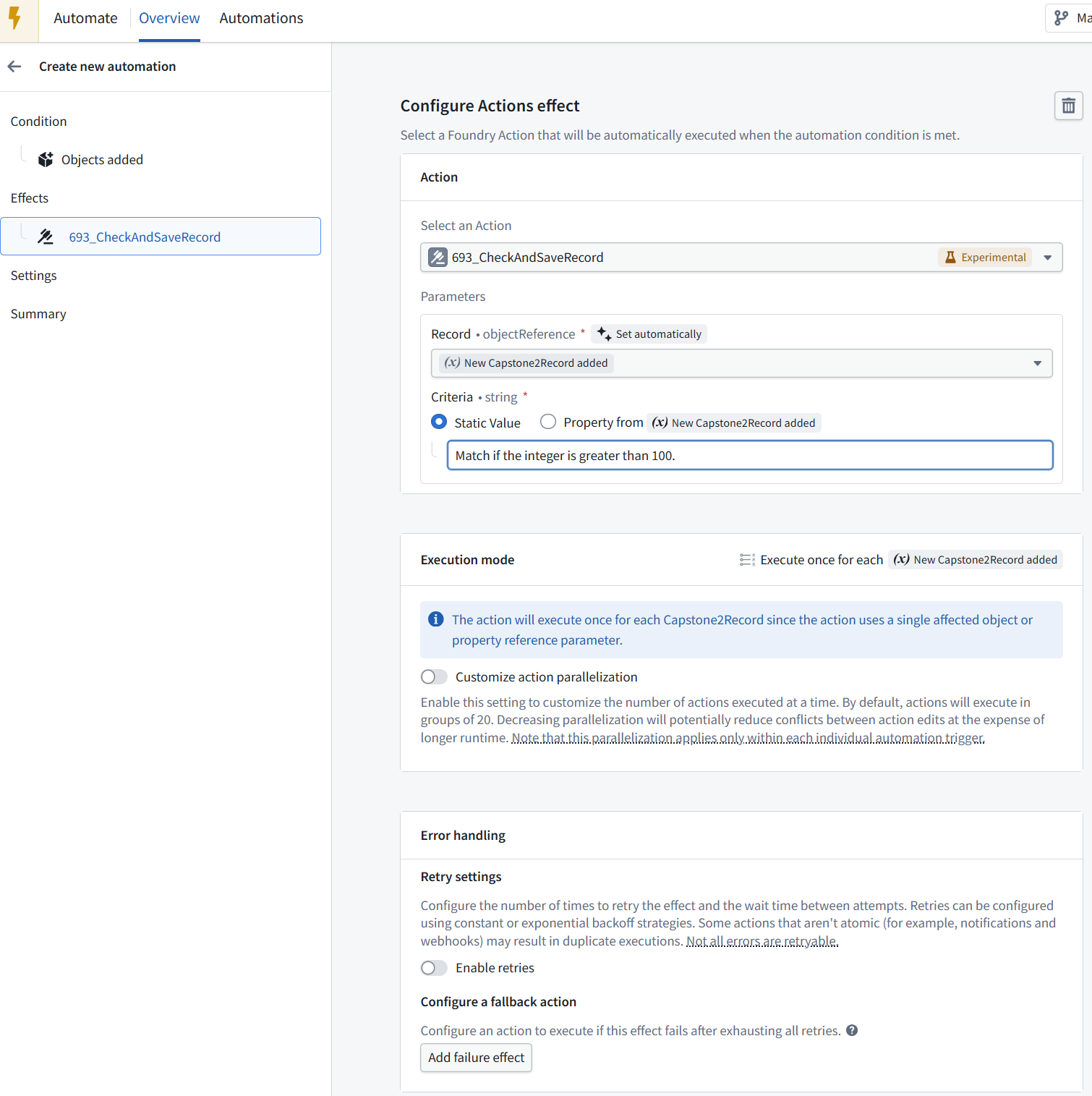
The effect is configured correctly:
- Record: the newly added Capstone2Record.
- Criteria: fixed text, Match if the integer is greater than 100.
- Execution: once for each new record. Leave parallelization and retries unchanged for this demo.
-3 Overview / Condition / Objects added (to set) / OT = Capstone2Record
Next, click Objects added under Condition in the left sidebar. We’ll verify which object set is monitored before enabling the automation.
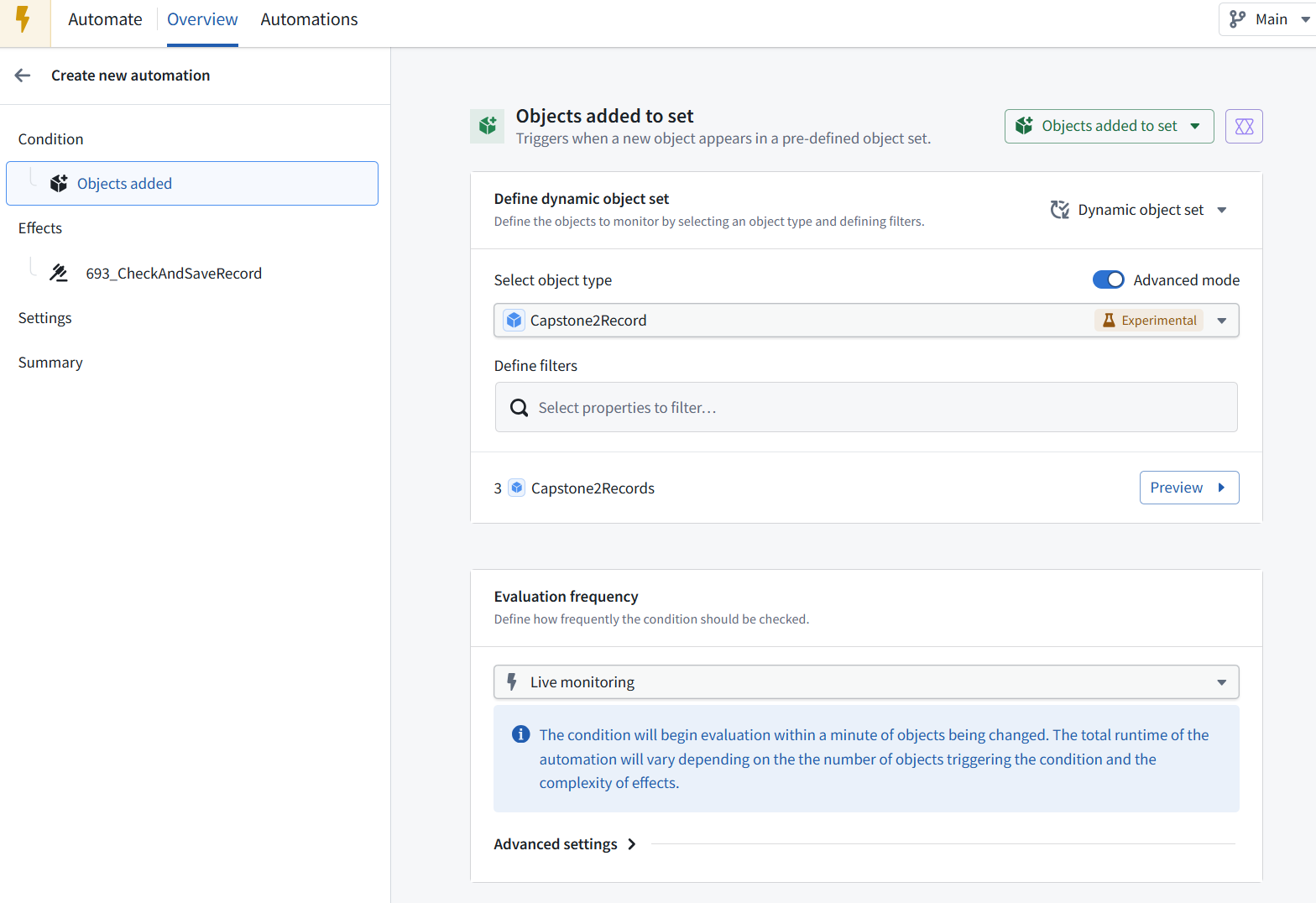
The condition is correct:
- Objects added to set
- Object type: Capstone2Record
- No filters—monitors the whole type.
- Live monitoring—the notice says evaluation begins within a minute of an object change, with processing time afterward. Because CheckResult is not used in a filter, saving an answer won’t make the record leave and re-enter this set.
-4 Expand Advanced settings
so we can check whether existing objects are included when the automation starts.
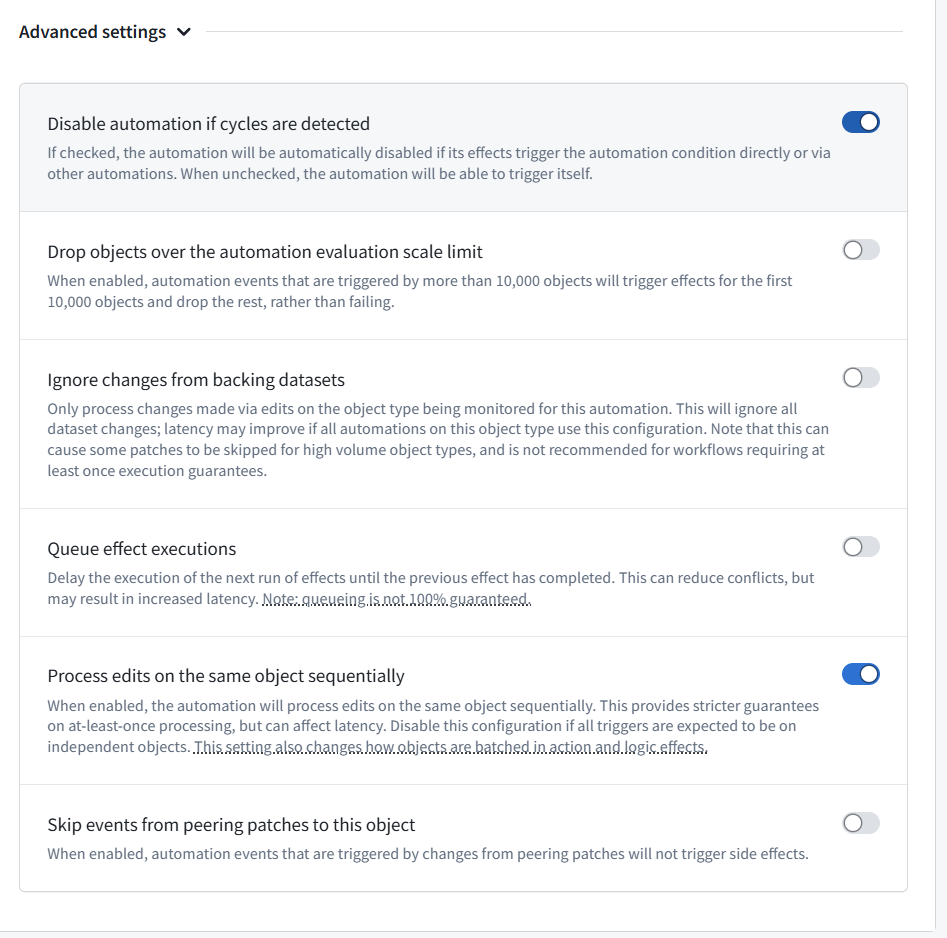
Keep these defaults. Two are especially important:
Disable automation if cycles are detected — ON: keeps loop protection enabled.
Ignore changes from backing datasets — OFF: necessary so newly imported MockAPI records can trigger the automation.
There’s no existing-object startup option shown here.
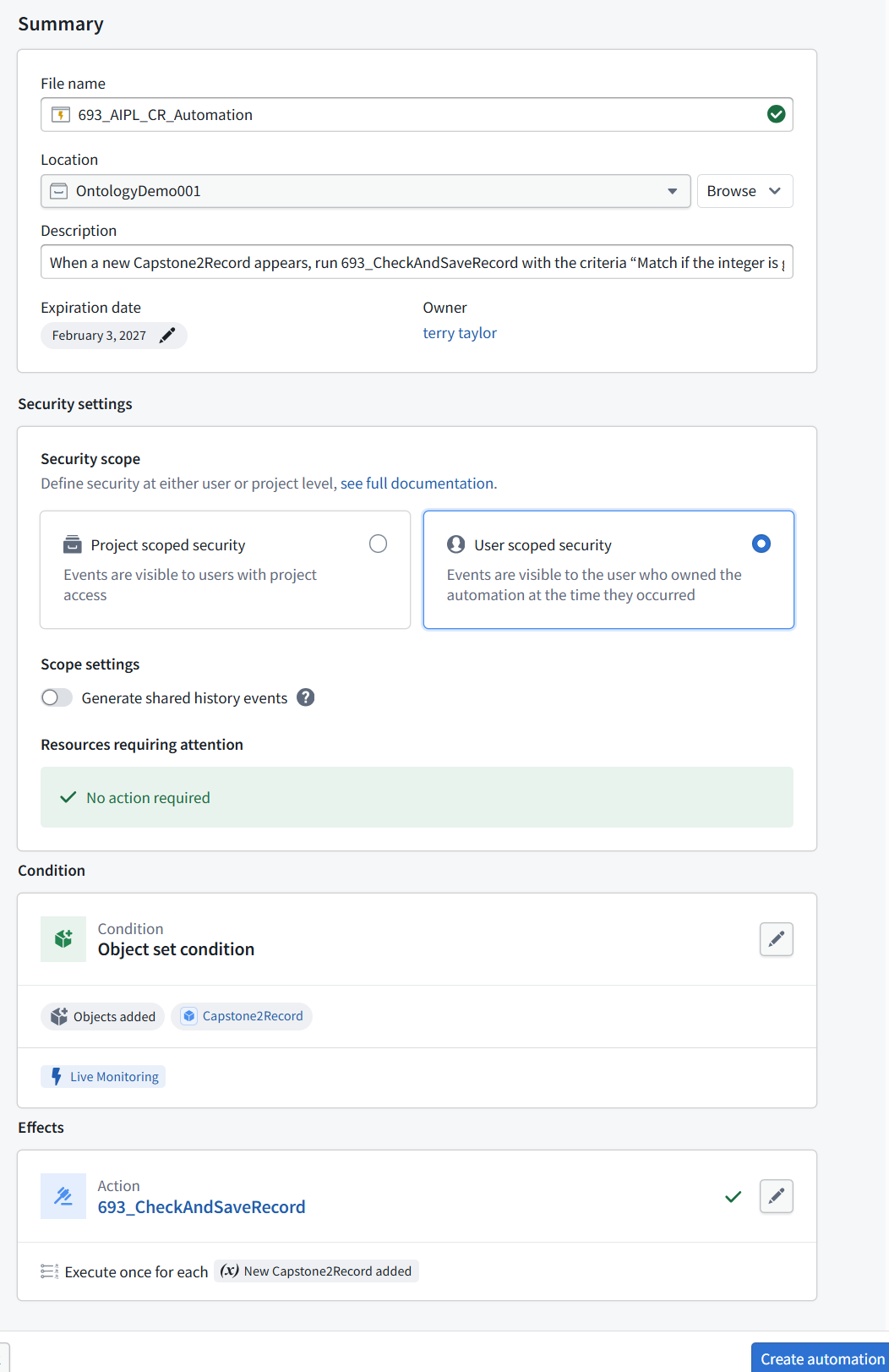
-5 click Summary in the left sidebar.
We’ll name the automation and review its security settings before creating it.
Yes—keep your name 693_AIPL_CR_Automation.
Enter this Description:
When a new Capstone2Record appears, run 693_CheckAndSaveRecord with the criteria “Match if the integer is greater than 100.” and save the AI answer in CheckResult.
Keep User scoped security selected and Generate shared history events off for this demo. The summary shows No action required, and the effect has a green check.
-6 create automation
If a confirmation or activation screen appears, show it before continuing.

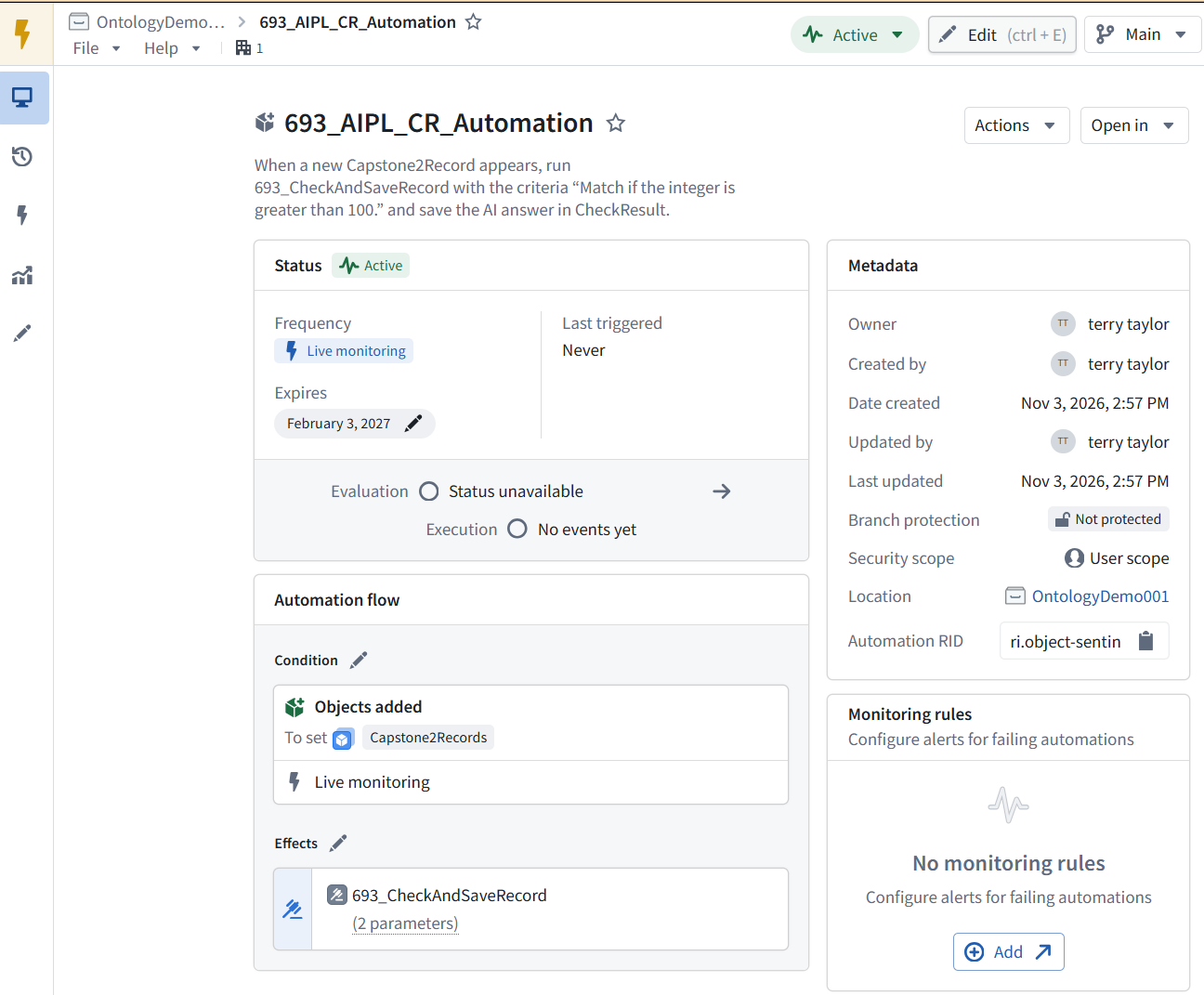
The automation is created and Active. It has not triggered yet (Last triggered: Never).
7.3 Test
7.3.1 Add MockAPI record
In MockAPI, add this record while preserving the existing three:
{“id”:”4”,”text”:”automation test”,”integer”:444}
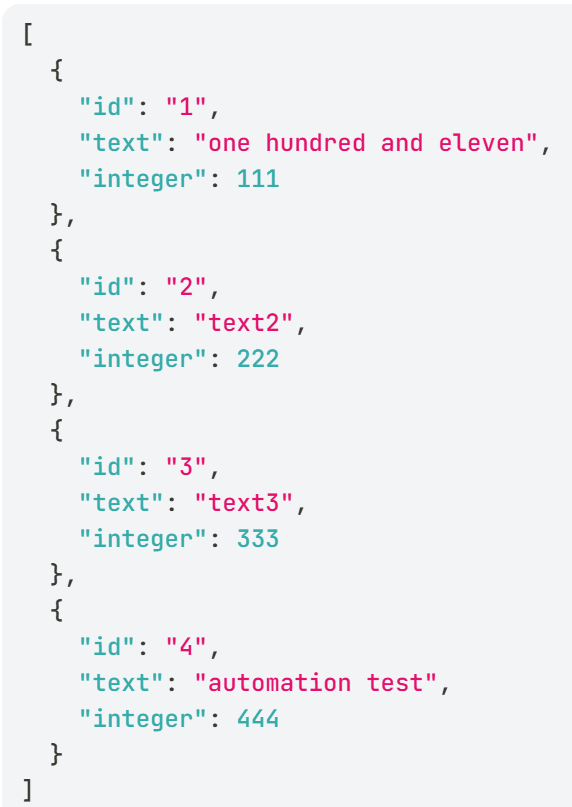
Remember: MockAPI’s Data → Update replaces the entire collection, so don’t paste only this record there.
7.3.2 Build dataset 693_MockAPI_Items
Then manually build the import that produces 693_MockAPI_Items, as in Chapter 1. Once the new object is indexed, the automation should check it and save FOUND because 444 > 100.
We’ll verify both the automation’s execution history and record Id 4—do not run the check Action manually.
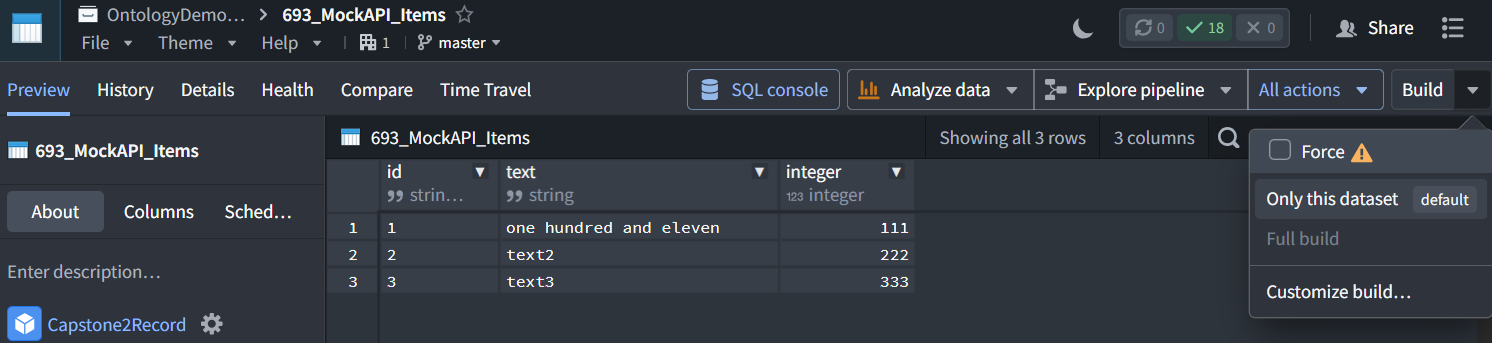
Yes—this is where you run the import to fetch the MockAPI records into the dataset.
After adding record Id 4 in MockAPI:
- Keep Only this dataset selected.
- Enable Force so the import runs again even if Foundry sees no input changes—the external MockAPI change may not be detected.
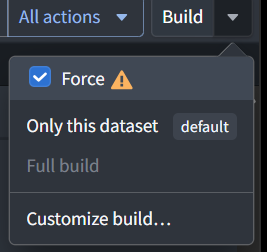
- Click Build. check the dataset preview for Id 4.
Indexing and the automation run follow afterward.
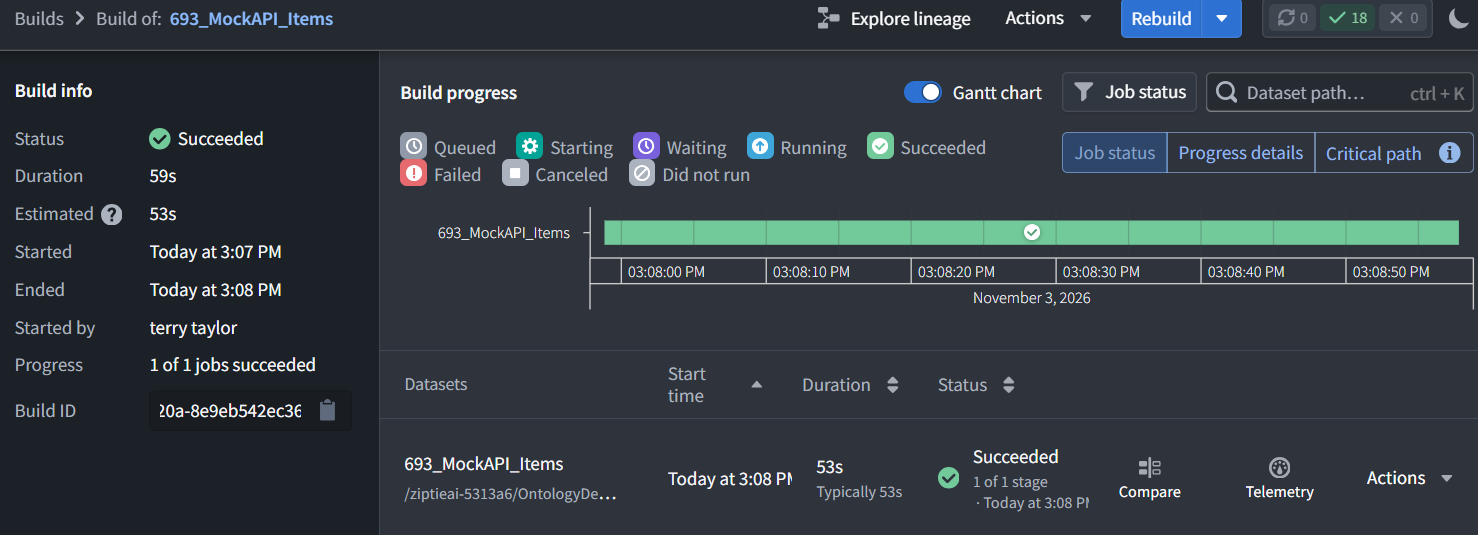
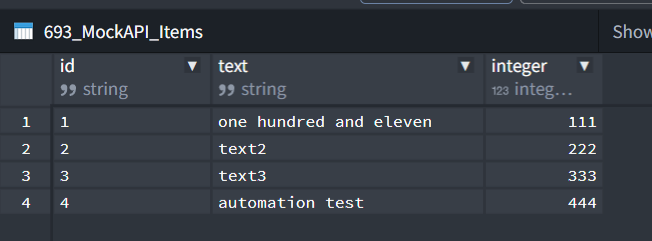
The import succeeded: the stored dataset now includes Id 4, automation test, integer 444.
7.3.3 Refresh the Capstone2Records table in Object Explorer
Allow time for indexing and live monitoring, then check whether Id 4 → CheckResult becomes FOUND.
Do not run either Action manually—we’re testing the automation.
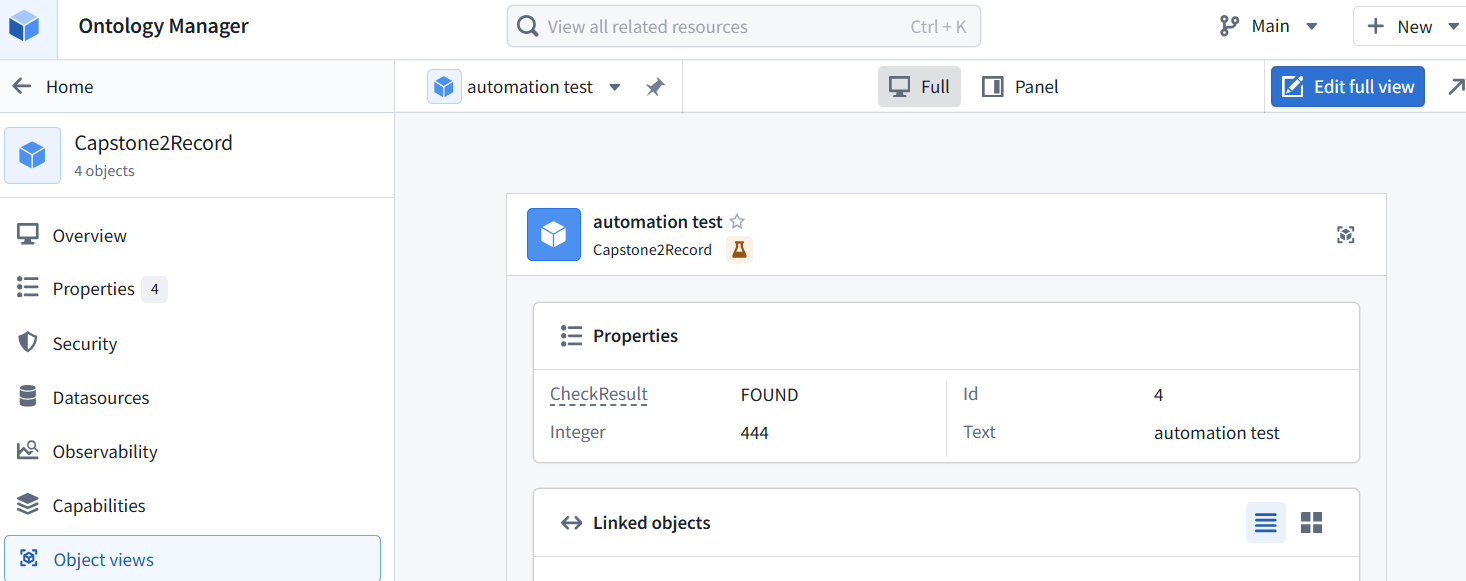
The new object has the expected saved answer:
- Id: 4
- Text: automation test
- Integer: 444
- CheckResult: FOUND Since you did not run the Action manually, this is evidence that the automation checked the new record.
7.3.4 Open 693_AIPL_CR_Automation / execution history.
We’ll confirm the Action succeeded for this record before closing Chapter 7.