How the demo D8 webpages were created (with GPT)
On this page
- “ME” = Actual human writer
- “GPT” = ChatGPT generated text
- often this is my own text that I ask GPT to just clean up
- but sometimes I ask GPT to generate intro or summary text for several sections of webpages
- “FDE/GPT” = Foundry “Forward Deployed Engineer” AI-assistant-generated text (FDE uses ChatGPT).
ME: This page describes
- how I used GPT to extract docx (MS Word doc) content to create
- Markdown (the text format saved to Github that are displayed on the ZiptieAI.com website) files and
- PNG’s (screenshot format).
There are 2 main sections
- 1 GPT: GPT as a document-processing tool (I asked GPT to create this text after we extracted the docx contents into markdown+PNGs)
- 2 ME: Actual chat between ME and GPT used to extract demo D8 webpages (I manually copied the chat text with GPT into Markdown).
Extraction version of the labnotes docx for the ZAI version of demo D8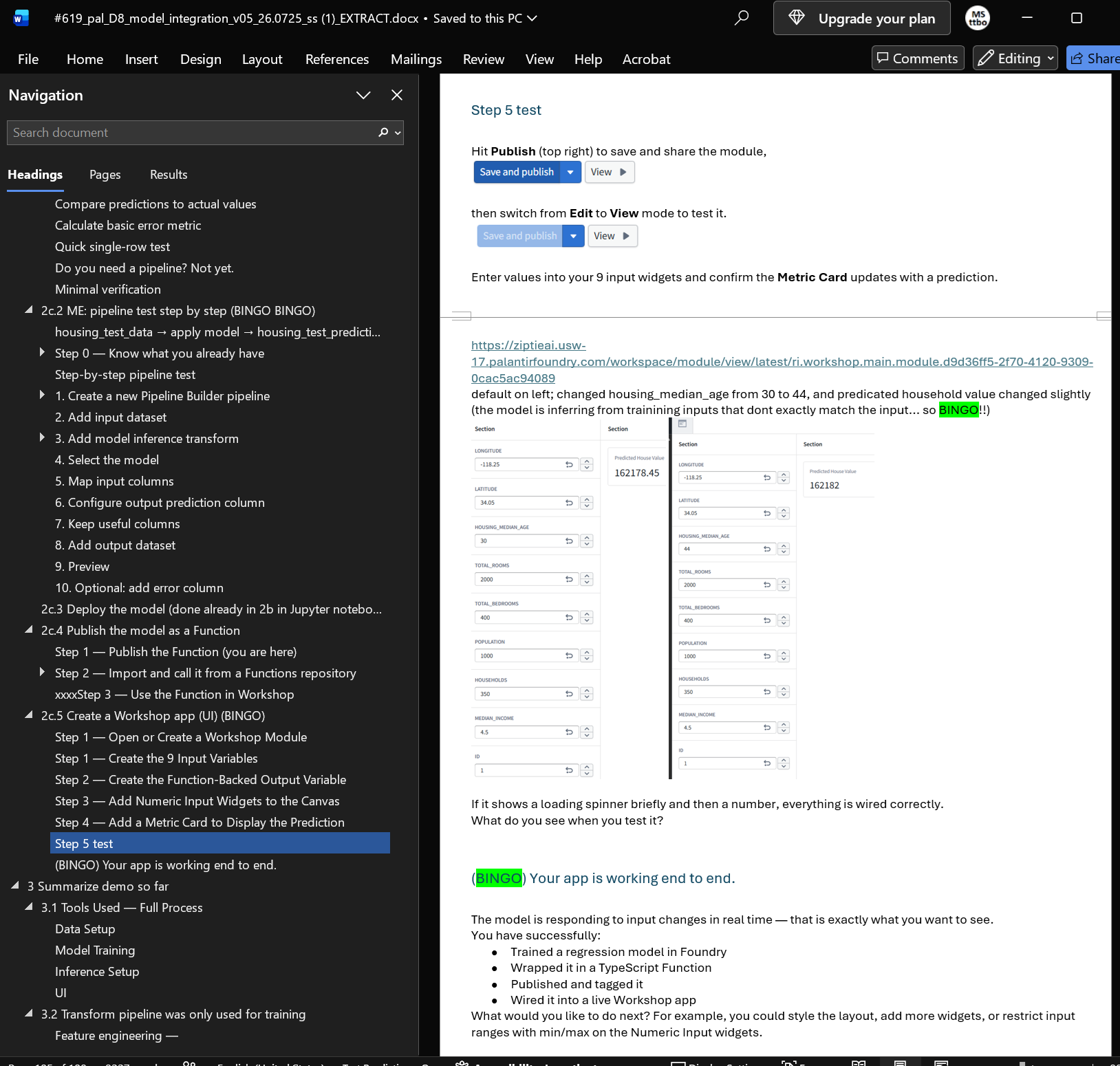
1 GPT: GPT as a document-processing tool
This webpage documents a practical example of using GPT for something much more involved than answering questions or generating text.
I had a large Microsoft Word document containing my notes for a Palantir Foundry demo. The document was roughly 50 MB and contained a mixture of:
- headings and subheadings
- normal text
- screenshots
- Markdown text
- code
- notes accumulated while building the demo
My website, however, is maintained primarily as Markdown + PNG files.
Manually converting this material would involve a lot of repetitive work: copying text, extracting screenshots, renaming files, creating image references, converting Word headings to Markdown headings, renumbering chapters, creating TOCs, and adjusting image sizes.
I asked GPT to do it instead.
1 The task
The Word document was the master source.
Rather than convert the entire document at once, I asked GPT to extract individual chapters. For example:
DOCX chapter 1b
        ↓
website chapter 3
        ↓
3c.8_pal_D8_3_project.md
GPT had to do more than simply extract text.
For each chapter it needed to:
- Find the correct chapter boundaries in the DOCX.
- Extract only that chapter.
- Convert Word heading levels to Markdown heading levels.
- Renumber headings for the website.
- Extract the screenshots belonging to that chapter.
- Convert the screenshots to PNG files.
- Rename the PNG files according to my naming convention.
- Insert the correct PNG references into the Markdown.
- Preserve the relative displayed image sizes from the Word document.
- Generate Markdown TOCs from selected heading levels.
- Package the Markdown and PNG files into a ZIP file.
2 Example
For one chapter I requested:
3c.8_pal_D8_5_train_jupyter (2b)
The source chapter in Word was numbered 2b, while the website chapter was numbered 5.
GPT therefore converted headings such as:
2b
2b.1
2b.2
to:
5
5.1
5.2
It extracted 44 screenshots from that chapter and named them sequentially:
D8.5-01.png
D8.5-02.png
D8.5-03.png
...
D8.5-44.png
The Markdown references were generated automatically:
<img src="/assets/D8/D8.5-01.png" alt="drones" width="45%" style="border: 1px solid #999;">
3 A surprisingly useful detail: image sizes
Initially I told GPT to display every screenshot at:
width="80%"
That worked, but it lost information contained in the original Word document. Some screenshots were intentionally small, while others occupied almost the entire page.
I asked GPT:
Can you possibly adjust the PNG display sizes to match the PNG sizes shown in the DOCX? Can you “see” the DOCX sizes?
The answer was yes.
A DOCX file stores the displayed dimensions of embedded images. GPT’s processing code could read those dimensions, compare them with the usable Word page width, and calculate an approximate percentage for the webpage.
So instead of making every image:
width="80%"
the generated Markdown might contain:
width="29%"
width="50%"
width="74%"
width="88%"
width="100%"
This preserved the relative visual importance and layout of the screenshots in my original document.
That is a small detail, but it significantly improved the conversion.
4 Automatic TOCs
I also wanted simple Markdown tables of contents.
For some pages I specified that GPT should use only Word H2 headings.
For example:
## **TOC**

- [4.1 Create the model](#41-create-the-model)
- [4.2 Configure training](#42-configure-training)
- [4.3 Train the model](#43-train-the-model)
GPT extracted the appropriate Word headings, applied the new chapter numbering, generated lowercase Markdown anchors, and produced TOCs that I could paste directly into the website.
5 What GPT was actually doing
This is a useful example because GPT was not simply “writing.”
The workflow was closer to:
                 large DOCX
                     │
                     ▼
             inspect structure
                     │
          ┌──────────┴──────────┐
          ▼                     ▼
       text/XML              images
          │                     │
          ▼                     ▼
 identify headings       extract image data
 chapter boundaries      read display dimensions
          │                     │
          ▼                     ▼
 renumber headings       convert/name PNGs
          │                     │
          └──────────┬──────────┘
                     ▼
              generate Markdown
                     │
          ┌──────────┴──────────┐
          ▼                     ▼
       TOC links          image references
          │                     │
          └──────────┬──────────┘
                     ▼
                MD + PNGs
                     │
                     ▼
                   ZIP
GPT combined reasoning about the document with programmatic manipulation of the DOCX and its embedded files.
That distinction is important.
The language model determined what needed to be done and generated/adapted the processing logic. Code then performed the deterministic operations such as reading the DOCX structure, extracting images, calculating dimensions, renaming files, and creating ZIP archives.
6 Why I find this interesting
This was not a carefully designed software project.
It developed interactively.
I would inspect the result and give GPT another requirement:
Use D8.3-01.png, D8.3-02.png...
Then:
Use /assets/D8/ in the image references.
Then:
Put a blank line between <br> and the Markdown heading.
Then:
Match the image sizes in the DOCX.
Then:
Create a TOC using only the H2 headings.
GPT incorporated each rule into the next conversion.
The process therefore looked like:
human inspects result
        ↓
human specifies correction
        ↓
GPT interprets requirement
        ↓
GPT modifies processing logic
        ↓
code processes document
        ↓
new artifact
        ↓
human inspects result
        ↺
This is very different from asking an LLM to “write me a webpage.”
It is closer to interactive development of a small, specialized document-processing system.
7 Technical writing implications
For me, this is one of the most interesting applications of AI.
I can continue to use DOCX as the convenient master authoring format, while GPT performs much of the mechanical conversion required for a Markdown-based website.
The human remains responsible for the important parts:
- what the document should say
- technical accuracy
- organization
- what should be included
- what should be removed
- how the material should be presented
GPT can handle a large amount of the mechanical work:
- document parsing
- format conversion
- image extraction
- filename normalization
- heading conversion
- numbering changes
- TOC generation
- link generation
- packaging
The result is not “AI replacing the technical writer.”
It is a technical writer using AI as a programmable document-processing assistant.
8 The bigger lesson
The most impressive part of this experiment was not any individual capability.
Extracting a PNG is easy.
Generating Markdown is easy.
Reading an image dimension is easy.
Creating a ZIP file is easy.
The useful capability was putting all of those operations together from ordinary conversational instructions and then incrementally modifying the workflow as the requirements changed.
That suggests a much broader way of thinking about LLMs.
Instead of only:
prompt → text
the more interesting pattern is:
human intent
     ↓
LLM reasoning
     ↓
tools + code
     ↓
deterministic processing
     ↓
artifact
     ↓
human verification
That is exactly what happened here.
And the final output was not an explanation of how I could convert my 50 MB Word document.
It was the converted Markdown and PNG files themselves.
2 ME: Actual chat between ME and GPT used to extract demo D8 webpages
Q01: i have a 50mb docx ready for md/png extraction.
can i give you the entire file and then we extract chapter by chatper (not all at once)
Yes. That is probably the better way to handle a 50 MB DOCX.
Upload the entire DOCX once. Then we can work chapter-by-chapter:
- You tell me which chapter/section to extract.
- I extract only that chapter’s text and associated images.
- Convert it to your established Markdown format.
- Name/export only that chapter’s PNGs.
- Give you the chapter as MD + PNGs (ZIP if desired).
- Then we move to the next chapter.
You do not need to split the DOCX yourself.
This also has an advantage: I can preserve the relationship between headings, text, and screenshots in the original master DOCX while we’re extracting individual chapters.
Go ahead and upload the 50 MB file.
Q02: first here is the toc of the target website pages.
[**3c.8_pal_D8_1_demo_goal (0)**](http://127.0.0.1:4000/3c.8_pal_D8_1_demo_goal/)[**3c.8_pal_D8_2_model_studio (1a)**](http://127.0.0.1:4000/3c.8_pal_D8_2_model_studio/)[**3c.8_pal_D8_3_project (1b)**](http://127.0.0.1:4000/3c.8_pal_D8_3_project/)[**3c.8_pal_D8_4_train_mstudio (2a)**](http://127.0.0.1:4000/3c.8_pal_D8_4_train_mstudio/)[**3c.8_pal_D8_5_train_jupyter (2b)**](http://127.0.0.1:4000/3c.8_pal_D8_5_train_jupyter/)[**3c.8_pal_D8_6_inf_app (2c)**](http://127.0.0.1:4000/3c.8_pal_D8_6_inf_app/)[**3c.8_pal_D8_7_summary (3)**](http://127.0.0.1:4000/3c.8_pal_D8_7_summary/)
note the following:
D8_2 = Demo 8 chapter 2- (1a) = in the docs the Heading numbering is “1a” (not “2”)
- it needs to be changed to “2” when you extract
please extract chapter “1a” in the docx (rename the headings with “2”; 1a.1 -> 2.1)
<br> before headings
** for headings
png relative location /D8/xxx.png
png name D8.2-01, D8.2-02, etc
pack md + png’s into zip
GPT:
Done. I extracted only chapter 1a model studio, ending before chapter 1b, and renumbered its headings from 1a... to 2... as requested. For example, 1a.1 became 2.1.
I also added <br> before headings, bolded heading text, used /D8/D8.2-01.png for the screenshot reference, and packaged the Markdown plus PNG into one ZIP.
Download D8 chapter 2 Markdown + PNG
Q03: in future extractions,
add a line after the <br> before a heading. it works fine in the website page … but in vsc editor the heading is not highlighted.
Yes. For all future DOCX → Markdown extractions, I’ll format headings like this:
<br>

## **2 Model Studio**
instead of:
<br>
## **2 Model Studio**
That extra blank line should make VS Code’s Markdown highlighting behave better while still rendering correctly on your website.
Q04: my mistake…
png references like this
<img src="/assets/D8/D8.2-01.png" alt="drones" width="80%" style="border: 1px solid #999;">
Got it. For future D8 extractions, I’ll use exactly this image-reference format:
<img src="/assets/D8/D8.2-01.png" alt="drones" width="80%" style="border: 1px solid #999;">
And headings will use the blank line after <br>:
<br>

## **2 Model Studio**
For later chapters, the image numbering will follow the chapter, e.g. D8.3-01.png, D8.4-01.png, etc.
Q05: wow… looks good. awesome work.
now please extract for
[**3c.8\_pal\_D8\_3\_project (1b)**](http://127.0.0.1:4000/3c.8_pal_D8_3_project/)
headings 1b -> 3
png names D8.3-01.png, etc
Done — extracted 1b → Chapter 3, with headings renumbered 1b → 3, 1b.1 → 3.1, etc.
It includes 16 PNGs, named D8.3-01.png through D8.3-16.png, with references in your corrected /assets/D8/... format.
[Download D8 Chapter 3 — MD + PNGs](sandbox:/mnt/data/3c.8_pal_D8_3_project.zip)
Q06: can you possibly adjust the PNG display sizes (width=”80%”) to match the png sizes shown in the docx? can you “see” the docx sizes?
Yes. The DOCX does store each image’s displayed size, so I can read the width/height it had in Word.
That means for future extractions I can convert the Word display width into a webpage percentage instead of forcing everything to:
width="80%"
For example, if an image occupies roughly half the usable Word page width, I can emit something like:
width="50%"
and if it nearly spans the page:
width="90%"
I can also preserve relative differences between screenshots, so small screenshots stay small and large ones stay large.
For the next chapter, I’ll use the DOCX image display sizes to set the Markdown width="xx%" values automatically.
Q07: can you do that for this chapter? only adjust the md file.
Done. I adjusted only the Markdown file, using the actual displayed widths from the DOCX for all 16 images.
The resulting widths range from about 28% to 89%, preserving the relative sizing from Word.
[Download the adjusted Markdown](sandbox:/mnt/data/3c.8_pal_D8_3_project_adjusted_sizes.md)
Q08: excellent excellent work. awesome.. thanks….
now extract **[3c.8_pal_D8_4_train_mstudio (2a)](/3c.8_pal_D8_4_train_mstudio/)**
Done. I extracted 2a → Chapter 4, renumbered the headings to 4, 4.1, 4.2, etc., and used the DOCX image display sizes for the Markdown widths.
It includes 20 PNGs, named D8.4-01.png through D8.4-20.png, referenced as /assets/D8/....
[Download D8 Chapter 4 — MD + PNGs](sandbox:/mnt/data/3c.8_pal_D8_4_train_mstudio.zip)
Q09: now - **[3c.8_pal_D8_5_train_jupyter (2b)](/3c.8_pal_D8_5_train_jupyter/)**
Done — extracted **2b → Chapter 5**, with **44 PNGs**, preserving their relative DOCX display sizes.

[Download D8 Chapter 5 — MD + PNGs](sandbox:/mnt/data/3c.8_pal_D8_5_train_jupyter.zip)
Q10: excellent. now - **[3c.8_pal_D8_6_inf_app (2c)](/3c.8_pal_D8_6_inf_app/)**
Done — extracted **2c → Chapter 6**, with **7 PNGs**, again preserving their relative DOCX display sizes.

[Download D8 Chapter 6 — MD + PNGs](sandbox:/mnt/data/3c.8_pal_D8_6_inf_app.zip)
AND FOR REST OF CHAPTERS…….
Q11: excellent … one last request
excellent ... one last request.
could you generate the md for the TOC (docx H2 headings only) for
- **[3c.8_pal_D8_2_model_studio (1a)](/3c.8_pal_D8_2_model_studio/)**
- **[3c.8_pal_D8_3_project (1b)](/3c.8_pal_D8_3_project/)**
- **[3c.8_pal_D8_4_train_mstudio (2a)](/3c.8_pal_D8_4_train_mstudio/)**
- **[3c.8_pal_D8_5_train_jupyter (2b)](/3c.8_pal_D8_5_train_jupyter/)**
- **[3c.8_pal_D8_6_inf_app (2c)](/3c.8_pal_D8_6_inf_app/)**

just return a single md file with the TOC markdown for each chapter.
i will copy and paste into existing md files.
Done. One Markdown file containing the **H2-only TOC Markdown for Chapters 2–6**, ready to copy/paste into the existing files.

[Download D8 Chapters 2–6 TOCs](sandbox:/mnt/data/D8_chapters_2_to_6_TOCs.md)
Q12: thanks. this is really impressive.
i will create a webpage about your awesome work. as an example of what GPT is capable of .. what would you write? (give me markdown).
..........bunch of text...............
Q13: one last thing while this is all still in your memory….
Demo 8 main page has this TOC

3c.8_pal_D8_1_demo_goal (0)
3c.8_pal_D8_2_model_studio (1a)
3c.8_pal_D8_3_project (1b)
3c.8_pal_D8_4_train_mstudio (2a)
3c.8_pal_D8_5_train_jupyter (2b)
3c.8_pal_D8_6_inf_app (2c)
3c.8_pal_D8_7_summary (3)

can generate a several sentences summary for each chapter?
and a general summary for the entire D8 demo to put at the top.
Yes. Based on the D8 material we just processed, I would keep these summaries fairly concrete and focused on the workflow you actually built.
General D8 demo summary
Demo D8 explores how a tradition …………………….
26.0904 (v1 26.0903)