D8.2 Model Studio (1a)
See the working text for this QS in
- #619_.docx.
- Demo URL there are actually many … this was a chaotic demo.
TOC
- 2.1 build model Workflow
- 2.2 trained model can be used for inference in downstream applications like
- 2.3 get started (WRONG)
2 model studio
https://www.palantir.com/docs/foundry/model-studio/overview/
2.1 build model Workflow
Building a model using Model Studio requires the following steps:
Choose your model trainer:
- Built-in trainers are available for common modeling tasks like time series forecasting, regression, and classification.
Provide your data:
- Choose the datasets to provide as training and optional testing data.
Configure your model:
- Parameters are available for each trainer. You can choose to fine-tune the parameters or stick with the defaults.
Launch the build:
- Launch the transform job and visualize training metrics in the experiment created at runtime. Once model training is complete, the
2.2 trained model can be used for inference in downstream applications like
2.2.1 Python transforms,
https://www.palantir.com/docs/foundry/integrate-models/transform-model-input
The ModelInput class allows you to load and use models within Python transforms, making it easy to incorporate model inference logic into your data pipelines. To learn more about using models in code workspaces, you can review details on the ModelInput class in Jupyter® Code Workspaces.
Class definition
from palantir_models.transforms import ModelInput
ModelInput(
alias, # (string) Path or RID of model to load
model_version=None, # (Optional) RID of specific model version
use_sidecar=False, # (Optional) Run model in separate container
sidecar_resources=None # (Optional) Resource configuration for sidecar
Parameters
| Parameter | Type | Description | Version / Notes |
|---|---|---|---|
| alias | str | Path or resource ID (RID) of the model resource to load from. | |
| model_version | Optional[str] | RID or semantic version of the specific model version to use. If not specified, the latest version will be used. | |
| use_sidecar | Optional[bool] | When True, runs the model in a separate container to prevent dependency conflicts between the model adapter and transform environment. | Introduced in palantir_models version 0.1673.0 |
| sidecar_resources | Optional[Dict[str, Union[float, int]]] | Resource configuration for the sidecar container. This parameter can only be used when use_sidecar is set to True. Supports the following options: |
Introduced in palantir_models version 0.1673.0 |
Examples
The code snippets below demonstrate the usage of a model in a transform. The examples assume the adapter for the model has a single Pandas input and a single Pandas output DataFrame called output_df specified in its API. The transform method on the model adapter, which leverages your provided predict method, automatically converts data_in, a TransformInput/LightweightInput instance, into the tabular input (either a Spark or Pandas DataFrame) expected by your model adapter’s API.
Model inference in lightweight transforms (recommended)
For use cases that do not require distributed inference in Spark, it is recommended to use lightweight transforms (the default with @transform.using) and run the model as a sidecar container. Learn more about model sidecars below.
from transforms.api import Input, Output, transform, LightweightInput, LightweightOutput
from palantir_models import ModelAdapter
from palantir_models.transforms import ModelInput
# Using use_sidecar=True with @transform.using requires palantir_models version 0.2010.0 or higher.
@transform.using(
data_in=Input(“path/to/input”),
model_input=ModelInput(
“path/to/my/model”,
use_sidecar=True # runs the model as a sidecar container
),
out=Output(‘path/to/output’),
)
def my_transform(data_in: LightweightInput, model_input: ModelAdapter, out: LightweightOutput) -> None:
# Assuming the model’s API has a single Pandas input
# and a single pandas output named df_out.
inference_results = model_input.transform(data_in)
predictions = inference_results.df_out
# Alternatively, you can use the predict method on
# a Pandas DataFrame instance directly:
# predictions = model_input.predict(data_in.pandas())
out.write_pandas(predictions)
……………………………………………..
2.2.2 Pipeline Builder,
https://www.palantir.com/docs/foundry/pipeline-builder/transforms-trained-model
Trained model node
The trained model node allows you to run user-defined Machine Learning models — trained either inside or outside of Foundry — directly within a Pipeline Builder pipeline. This enables ML teams and no-code users to seamlessly integrate model inference into their data pipelines without writing any code.
Getting started
1. Configure your pipeline
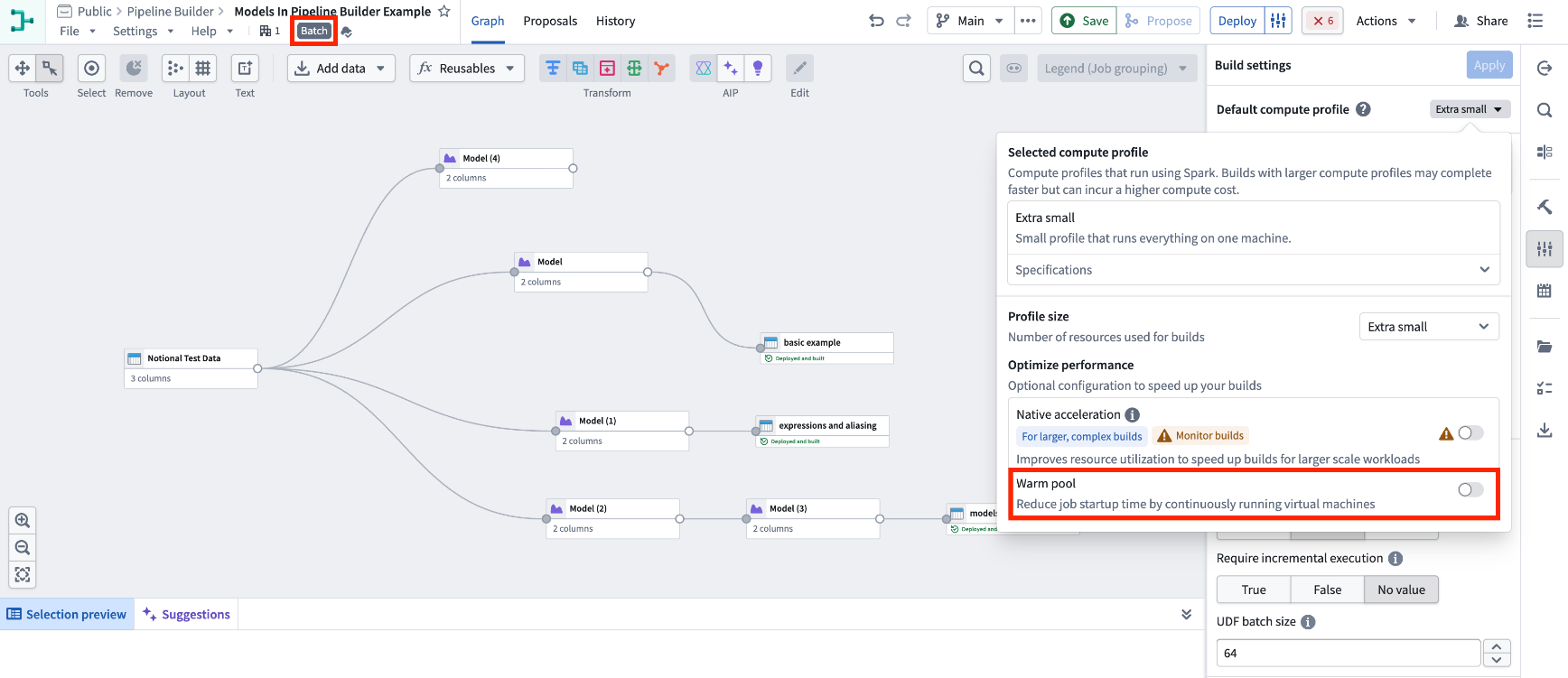
Ensure you are working with a Spark (batch) pipeline and that Warm pool is set to OFF. Create a new pipeline if your existing one is not configured to use Spark (batch) mode.
2. Import your model
……………………………………..
2.3.3 functions, and
https://www.palantir.com/docs/foundry/model-integration/functions-on-models
Functions on models
You can deploy models as functions to enable live usage of models in end-user applications like Workshop, Slate, Actions, and more. Model functions can also be used in other functions to write custom business logic involving the model in code.
Publish a function for your model
Functions can be published for models with a live deployment configured, or for Modeling Objectives live deployments.
Learn more about how to configure and manage model functions.
Call a model function in code
Below is a simplified example of a function that calls a live deployment that takes an input Double[] and returns a Double[] output called output_df in the model API:
Copied!
import { Function, Double } from “@foundry/functions-api”;
import { ModelDeployment } from “@foundry/models-api/deployments”;
@Function()
public async predictValues(inputs: Double[]): Promise<Double[]> {
const modelOutput = await ModelDeployment(inputs);
return modelOutput.output_df;
}
Learn more about how to use model functions in other functions.
…………………………………………………
2.3.4 shipped via Marketplace.
https://www.palantir.com/docs/foundry/model-integration/marketplace-models
Add modeling resources to a Marketplace product
You can use Foundry DevOps to include your modeling resources in Marketplace products for other users to install and reuse. Learn how to create your first product.
Supported features
Models can be packaged as part of products in DevOps and deployed via Marketplace for release management purposes. Models are also supported as product inputs, allowing users to select models during installation.
Package a model
Models can be packaged into a Marketplace product as outputs (content that will be deployed) or included as inputs that users select during installation.
There are two ways to include a model in a product’s outputs, Include with content, and Include with producer.
…………………………………………………………..
2.3 get started (WRONG)
Model Studio training jobs can also be integrated with build schedules to automatically retrain the model whenever new data is available.
Ready to get started? See the guided tutorial or learn more about Model Studio.
2a. Tutorial: Train a model in Model Studio
https://www.palantir.com/docs/foundry/model-integration/tutorial-train-model-studio
complete modeling project set up Before starting this part of the tutorial
(LATER) In this part of the tutorial, we will train a model using Model Studio. We will cover the following steps:
- Create a model studio
- Configure a model studio training job
- Monitor a training job
- View the model and submit it to a modeling objective
26.0903 (v1 26.0903)