Why the ZAI approach to learning Foundry is the most effective
“Mechanistic” step by step demos are what you need to get started with Foundry
This page shows a perfect example of why you need to start out learning Foundry with
- ZAI “mechanistic” demos (not real world demos) that give you basic skills with the Foundry UI.
- FDE to help you when you run into problems.
The following sections show what happened after I made a small mistake that caused a lot of complications. Even after using Foundry for 2 months, I still run into such issues. Luckily
- I document what I do and
- (most of all) I have FDE to help.
This webpage content was auto-converted from docx by GPT (the formatting is not perfect).
- See Docx #694 for original text.
My mistake
FDE told me to close this dialog.
I thought i’d try the X button for once.
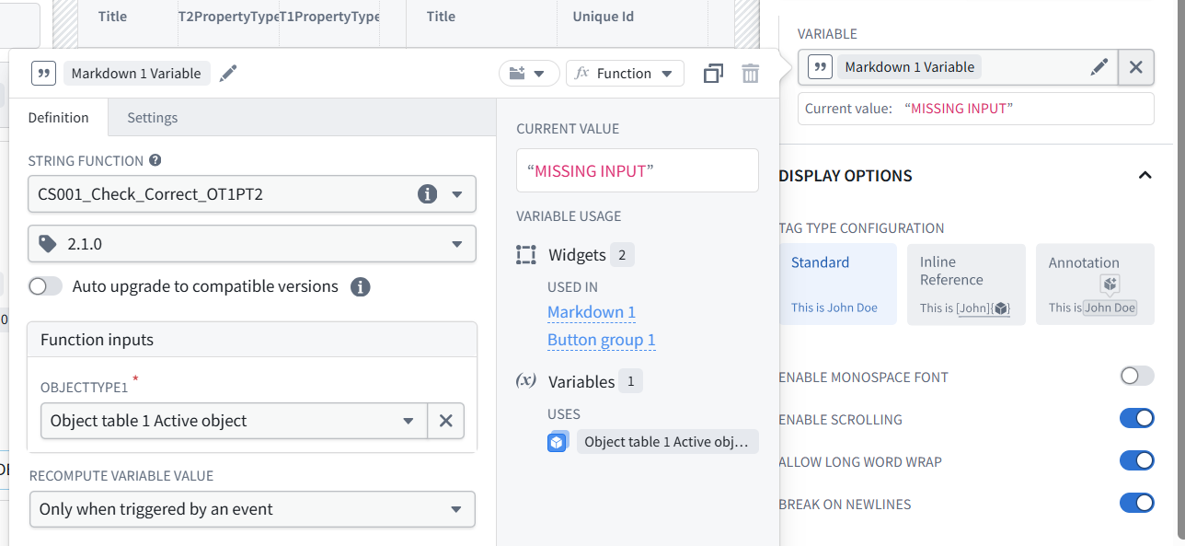
Wrong. My settings all gone.
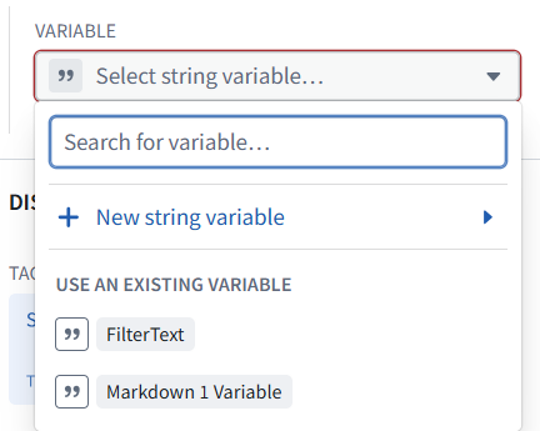
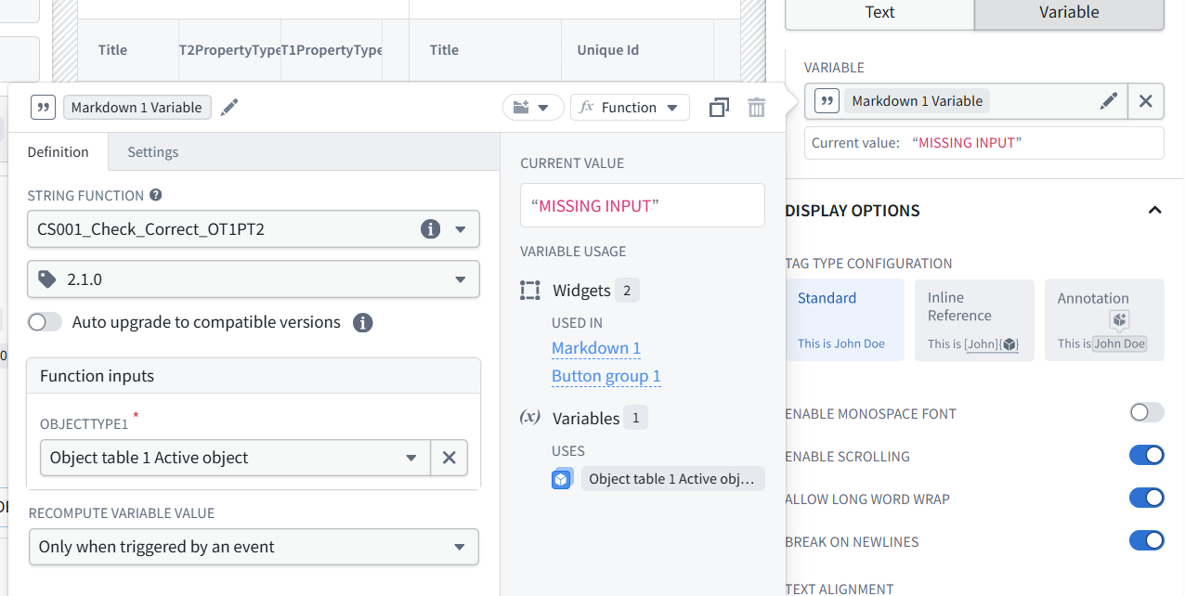
Luckily I reselected the variable, and all was ok.
I only knew for “sure” it was ok because I could ask FDE to confirm.
I wasn’t 100% sure this would not mess somethign up.
ME: pic1: you said close the editor
pic2: i click on the X for INPUT DATA / VARIABLE. all settings gone.
pic3: i reselect the var… is it all ok?
this is a perfect example of the massive challenges a newcomer experiences with this UI.
FDE: Yes—pic 3 shows that everything is correctly connected again. You did not lose the variable’s settings.
Verified in pic 3:
Markdown input: Markdown 1 Variable
Function: CS001_Check_Correct_OT1PT2
Version: 2.1.0
Object input: Object table 1 Active object
Recompute: Only when triggered by an event
Auto upgrade: off
What happened
The × beside the Markdown widget’s Variable field means:
Disconnect this variable from the widget.
It does not mean “close the variable editor.”
That explains pic 2: the widget’s input became empty, but Markdown 1 Variable still existed, including its settings. Selecting it again restored the connection.
My instruction “close the editor” was insufficient. I should have specified how and warned that this × removes the binding. This is exactly the UI distinction the course needs to explain.
ME: so how should i have closed the dialog?
Click outside the floating variable editor—
for example, on the table’s Title column header behind it. That dismisses the editor without removing the binding.
The distinction is:
Click outside the popup: close the editor.
× beside the widget’s Variable field: disconnect the variable from the Markdown widget.
I should have said “click outside the popup to dismiss it,” not simply “close the editor.”
ME: you are not the problem.
but just showing you why this approach i am using
step by step , mechanistic, focusing on the dialogs
with FDE assistance
taking my own notes (screenshots in ms.word)
Yes—this incident demonstrates exactly why your approach matters.
Understanding the algorithm is not enough; the learner also needs to understand what each dialog and control actually does.
Your method makes those mechanics visible:
Small steps: isolate one change at a time.
Dialog-level explanations: distinguish dismissing an editor, removing a binding, saving, publishing, and executing.
FDE assistance: interpret the screen actually in front of you.
Your screenshots and Word notes: preserve the observed behavior, including confusing transitions and recovery steps.
This example deserves a short note beside the screenshot:
To dismiss the variable editor, click outside it. The × beside the widget’s Variable field removes the binding—it does not close the editor. If removed accidentally, reselect the existing variable; its definition remains intact.
That is valuable course material—not a distraction from the demo.
ME: did my X mistake cause an error?

The × removed the binding temporarily, but your pic 3 showed it correctly restored. There is no evidence that it damaged the function or its settings.
This screenshot shows only NOT FOUND. It does not tell us whether that is a previous result or a new answer from version 2.1.0.
Let’s check one thing at a time:
In Workshop View, select the object whose title is:
The total is Six hundred and eighty for this week.
Confirm its integer is 680.
Press FindNeedle and wait for completion.
Send a screenshot showing both the selected row and the result.
Expected: FOUND. If it still returns NOT FOUND, we’ll inspect the function version in the Workshop view being tested—without rebuilding anything.
Have you already performed those exact steps since reconnecting the variable?
ME: (screenshot)
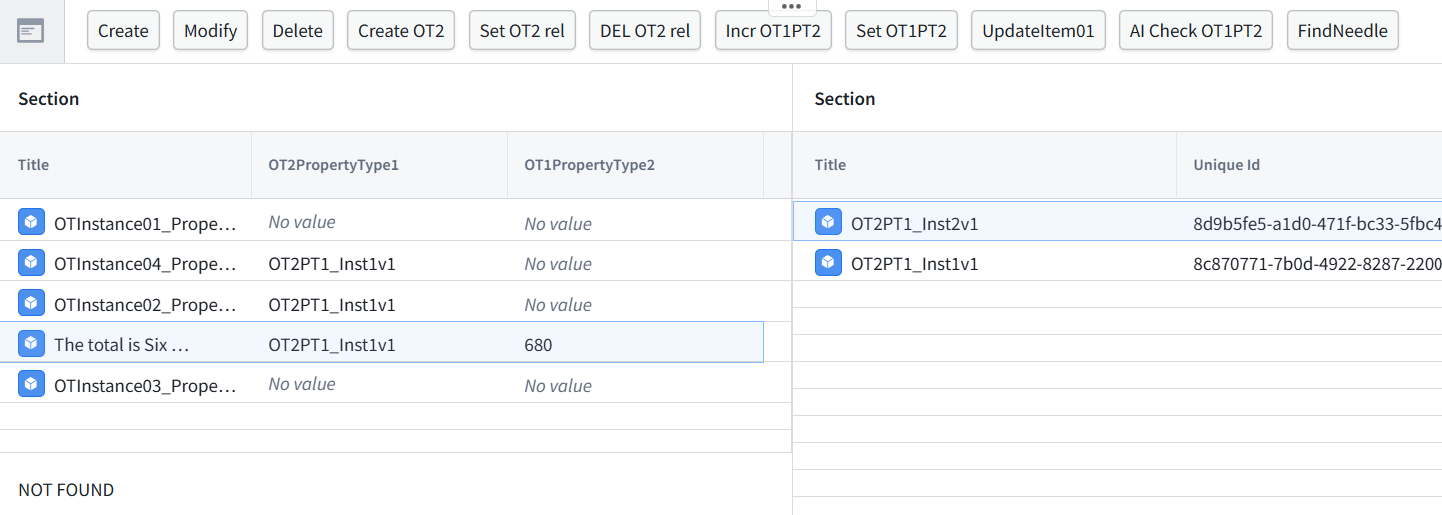
The intended row is selected, its integer is 680, and the displayed result is NOT FOUND. So we have not yet verified the new algorithm in Workshop.
Your earlier configuration showed 2.1.0, but this screenshot does not show which Workshop revision is running. An older UI revision still pointing to 2.0.0 is one possibility—not yet a diagnosis.
Check the Workshop revision first
Please show the topmost Workshop toolbar, including:
The UI version number.
Any unpublished version banner.
The Edit/View controls.
Do not change the object or reconnect the variable again. The × binding was restored correctly; we should inspect which UI configuration is actually running before changing anything else.
ME: (screenshot)
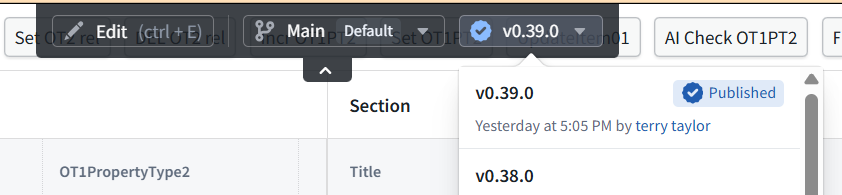
This shows you are viewing published Workshop version v0.39.0. It does not tell us which function version that UI release contains.
We changed the function selection to 2.1.0 in the editor, but have not yet confirmed that change was saved and published in Workshop. That could explain the result.
Next: inspect the editor’s current setting
Click Edit in the toolbar shown.
Select the Markdown result widget beneath the left table.
Click the pencil beside Markdown 1 Variable.
Check the function-version dropdown.
Send a screenshot showing that version and the Workshop top toolbar.
Do not change or publish anything yet. We’ll compare the editor configuration with the published UI before proceeding. To dismiss the variable editor afterward, click outside it—not the × beside the widget’s variable binding.
ME: its now 4 am
Let’s stop here for tonight. No more changes needed now.
Checkpoint for next time:
AIP Logic 2.1.0 is published and returned FOUND in Preview.
Workshop’s editor was configured for 2.1.0.
The runtime shows published UI v0.39.0 and returns NOT FOUND.
We have not yet established whether v0.39.0 includes the function-version update.
The accidentally removed variable binding was restored.
Next time, we’ll compare the Workshop editor configuration with the published UI—not rebuild anything.
If the editor shows unsaved work when closing, leave the tab open rather than discard it. Get some rest.
ME: no … i just got up… I mean the UI used is the publised version from 11 hours ago.
Understood—I misread your comment. You mean the running UI was published 11 hours ago, before our change to function 2.1.0.
That explains why it still behaves like the old algorithm. The × mistake was not the cause; the updated Workshop configuration has not been published to that running version.
Next
Click Edit.
Verify Markdown 1 Variable still selects function 2.1.0.
If correct, use the Save dropdown → Save and publish workflow we used previously. If the available labels differ, show me the menu.
Return to the newly published UI.
Select the number-word test object with integer 680, then press FindNeedle.
Expected: FOUND.
This is an important CS003 checkpoint:
Publishing the new AIP Logic function and publishing Workshop’s updated function selection are two separate steps.
ME: there is Save and publish .
it was autosaved though.
i think we need to click on the v0.39.0
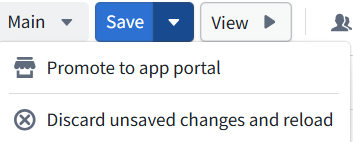

Autosaved does not mean published. Your screenshot shows:
v0.39.0* — changes relative to that version.
Autosaved at 3:58 AM — the editing work has been preserved.
The Save dropdown contains neither Save and publish nor Publish. My suggested menu labels were wrong for this screen.
Clicking v0.39.0* is a reasonable next inspection step. It should let us inspect the version controls, but we should not assume which publication options it contains.
Dismiss the Save dropdown by clicking outside it.
Click v0.39.0*.
Send a screenshot of what opens.
Do not select an older version or discard changes. We want to preserve the editor’s 2.1.0 binding and establish the actual save/publication procedure in your UI.
ME: what is going on?
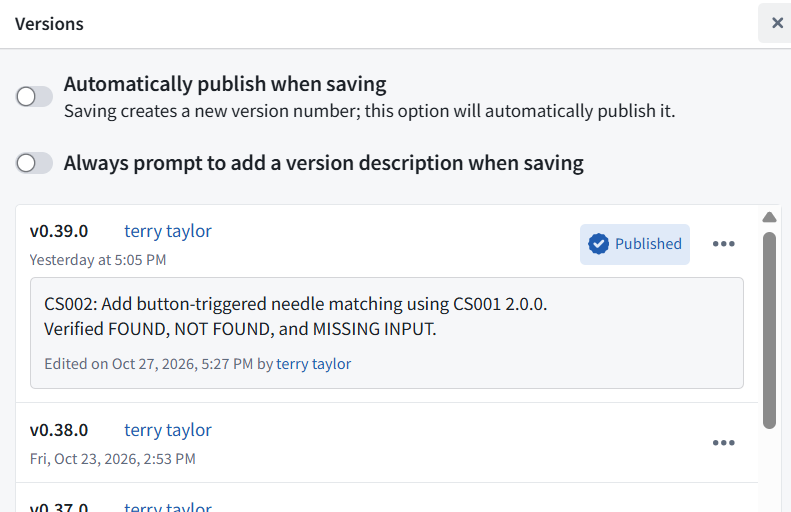
This screen finally makes the distinction explicit. I added confusion by guessing menu labels instead of establishing this first.
Workshop has three separate states:
Your screen says “Automatically publish when saving” is OFF. Therefore, Save and Publish are separate operations in your current configuration.
It also confirms:
v0.39.0 is the published UI.
Its description explicitly says CS001 2.0.0.
Our newer editor changes have not yet been captured in a new numbered UI version.
One step now
Leave both switches unchanged.
Close this Versions dialog using its top-right ×. This × closes the dialog—unlike the × beside a variable binding.
Click the main Save button—not its dropdown.
Show what appears.
Save will create the next numbered Workshop version. With automatic publication off, it will not publish it. After saving, we’ll inspect that new version’s … menu for the publication command.
The course note here is:
Workshop autosave preserves the draft. Save creates a numbered version. Publish makes a saved version the published app.
ME: (screenshot)

That warning means Workshop has detected a newer module version than the one this tab currently has loaded. It does not tell us whether that newer version is published or includes our changes.
The toolbar still shows v0.39.0*, so do not refresh or discard changes yet.
Inspect before changing anything
Click v0.39.0* to reopen Versions.
Send a screenshot of the top entry, including its version number and any Published badge.
We’ll establish whether your Save created a new version, or whether this tab is behind another saved version. Do not click Save again yet.
ME: (screenshot)
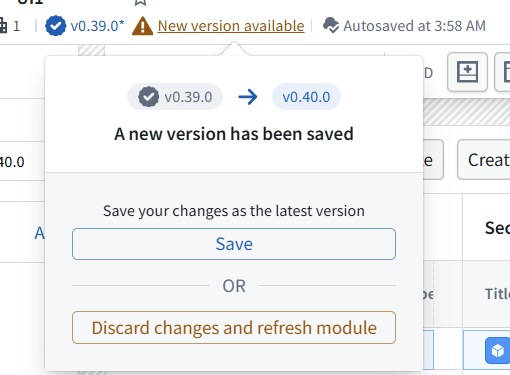
A newer saved version, v0.40.0, exists. This tab is still on v0.39.0 with editing changes, which is why Workshop is asking how to proceed.
The two choices mean:
Save: preserve this tab’s current changes as the latest version.
Discard changes and refresh module: abandon this tab’s changes and load the newer saved version.
We have not verified what v0.40.0 contains, so do not choose Discard.
Preserve our configuration
Click Save inside this popup.
If another dialog or warning appears, stop and send it.
Otherwise, reopen Versions and show the newest entry.
Do not publish yet. First we’ll confirm that the saved configuration still selects CS001 2.1.0.
I also need to correct my earlier instruction: saying “do not click Save again” was too broad. This popup explicitly offers Save as the way to preserve the current tab’s changes.
ME: (screenshot)
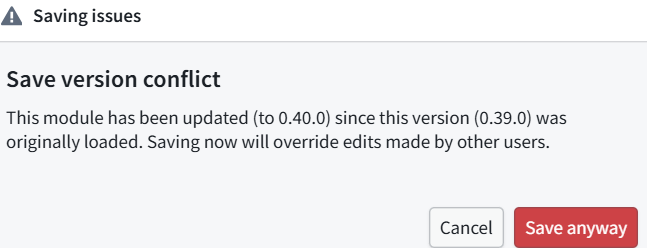
Click Cancel—not Save anyway.
This dialog explicitly warns that saving would overwrite edits in v0.40.0. Those could be from another tab or session; the message does not establish who made them.
My previous instruction was wrong: the popup’s Save option was not necessarily a safe preservation step. I should have accounted for this conflict.
Next: inspect without overwriting
Click Cancel. Do not discard or refresh this editing tab.
Open UI1 in a separate browser tab.
In that new tab, open Versions and inspect v0.40.0.
Send a screenshot of its entry and available controls.
We want to determine whether v0.40.0 already contains the CS001 2.1.0 update. If it does, we may only need to publish it—no overwrite required.
ME: (screenshot)
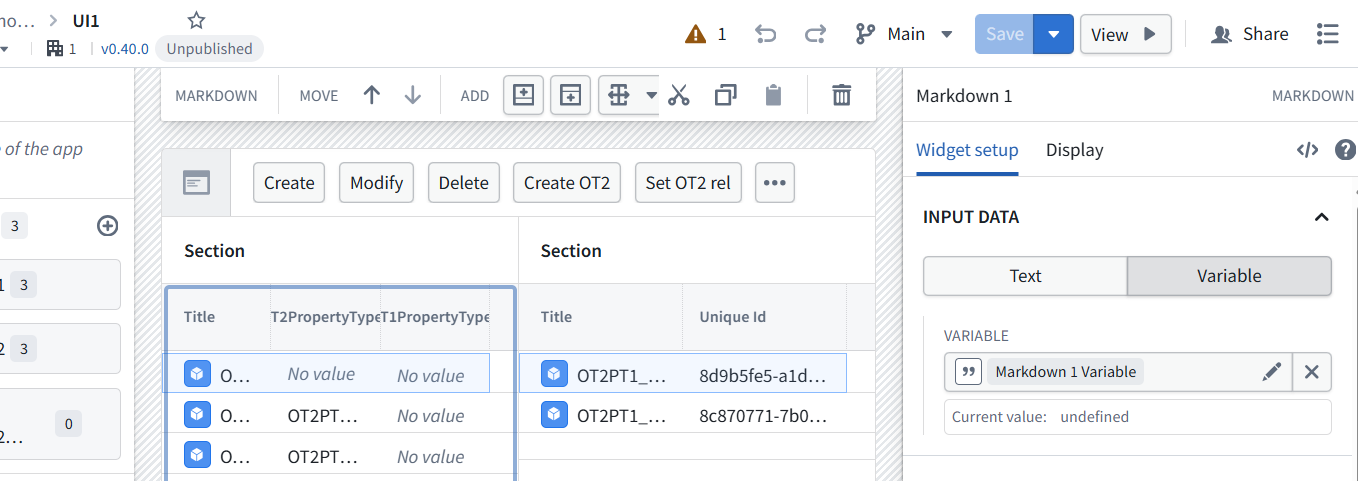
Good—this new tab has loaded saved UI version v0.40.0, marked Unpublished. The Markdown widget’s variable binding is present, and the Save button is disabled.
We still need to verify which function version was saved in it.
One check
In the right panel, click the pencil beside Markdown 1 Variable—not the ×.
Send a screenshot showing:
Function version.
Object input.
Recompute setting.
Do not edit or save anything. If v0.40.0 already selects 2.1.0, we can proceed toward publishing that saved version without overwriting anything from the older tab.
ME: (screenshot)
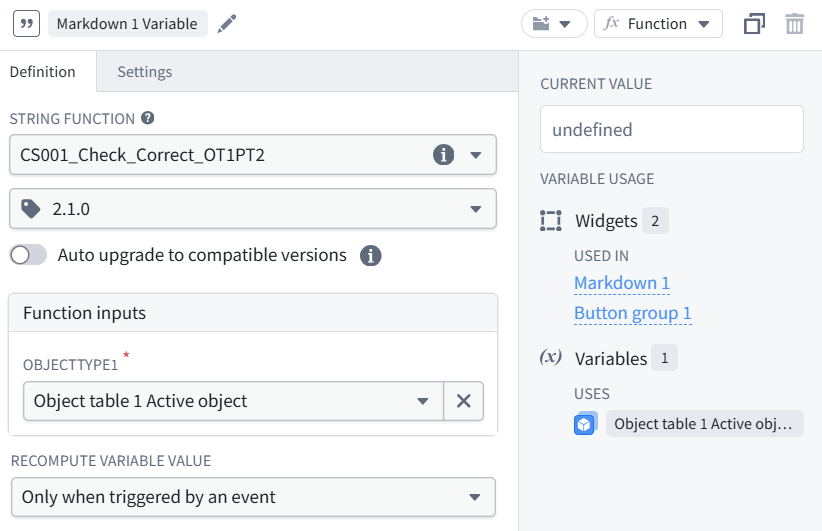
Verified: saved Workshop v0.40.0 already contains the correct configuration.
Function version: 2.1.0
Input: Object table 1 Active object
Recompute: Only when triggered by an event
Auto upgrade: off
No overwrite or additional save is needed. The remaining step is publishing v0.40.0.
Inspect the publication command
In this new v0.40.0 tab:
Click outside the variable editor to dismiss it.
Click v0.40.0 at the top to open Versions.
Open the … menu beside the v0.40.0 entry.
Send a screenshot of that menu.
Leave the old v0.39.0 editing tab untouched; do not use Save anyway there.
The distinction is now confirmed: v0.40.0 has the new function binding, but the published UI was still v0.39.0.
ME: (screenshot)
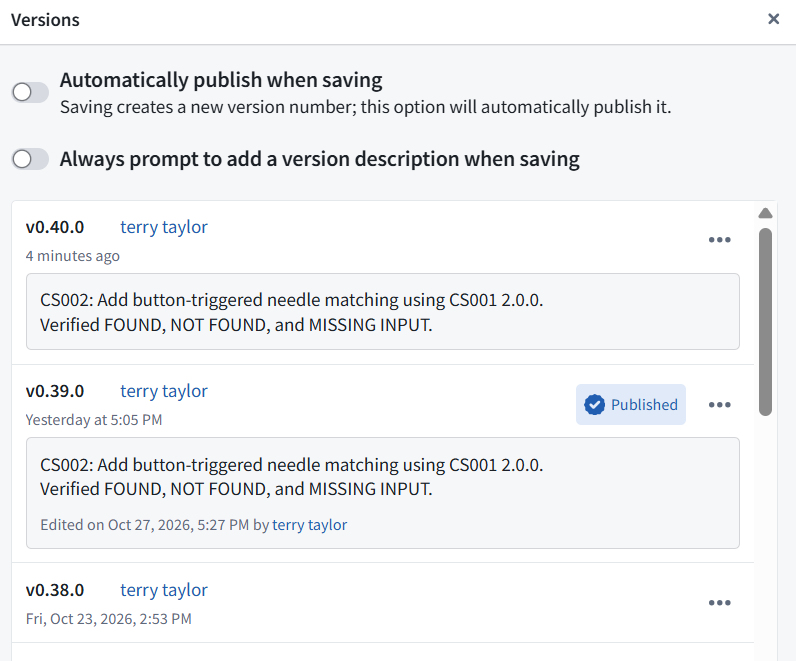
This confirms the two UI states:
v0.40.0: saved, not published; we verified it uses function 2.1.0.
v0.39.0: still marked Published.
The description under v0.40.0 still mentions CS002 and function 2.0.0. That description is not evidence of the actual binding—we inspected the binding directly and confirmed 2.1.0. We should update the description if the menu allows it.
Next click
Click the … beside v0.40.0—the uppermost three-dot menu, at the right of its entry—and send a screenshot.
Leave both switches unchanged. Do not use the menu beside published v0.39.0.
ME: (screenshot)
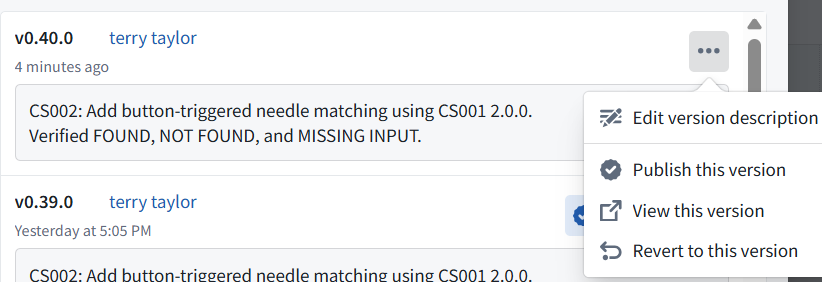
There is the command: Publish this version. We now have the exact procedure for your UI.
Update the description, then publish
Click Edit version description.
Replace the old description with:
1
2
3
Save the description using the dialog’s confirmation control.
Reopen … beside v0.40.0.
Click Publish this version. If a confirmation appears, confirm publishing v0.40.0.
This makes v0.40.0 the published Workshop app. It does not execute the LLM or change object data. Do not select Revert to this version.
Verify that the Published badge moves to v0.40.0. Then open that version in View, select the number-word test object with integer 680, and press FindNeedle.
Expected: FOUND.
ME: (screenshot)
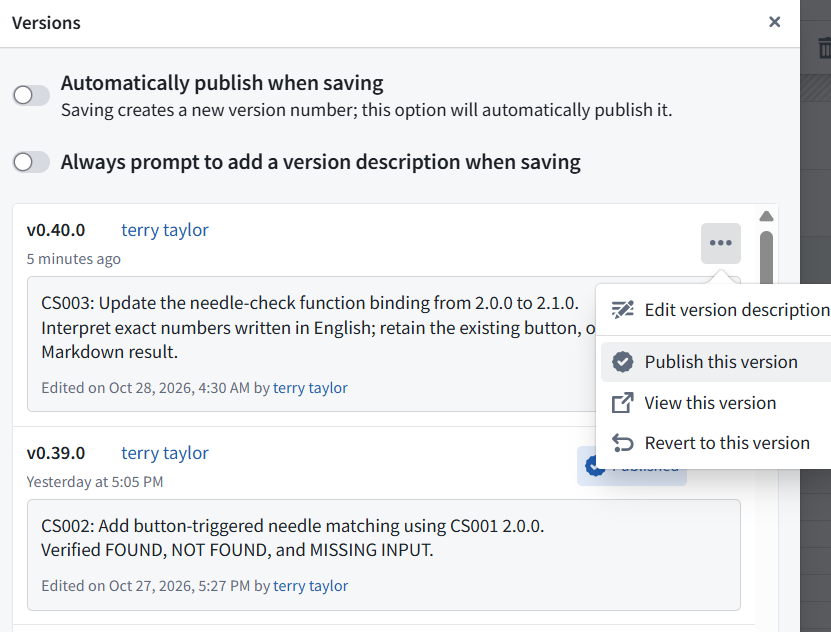
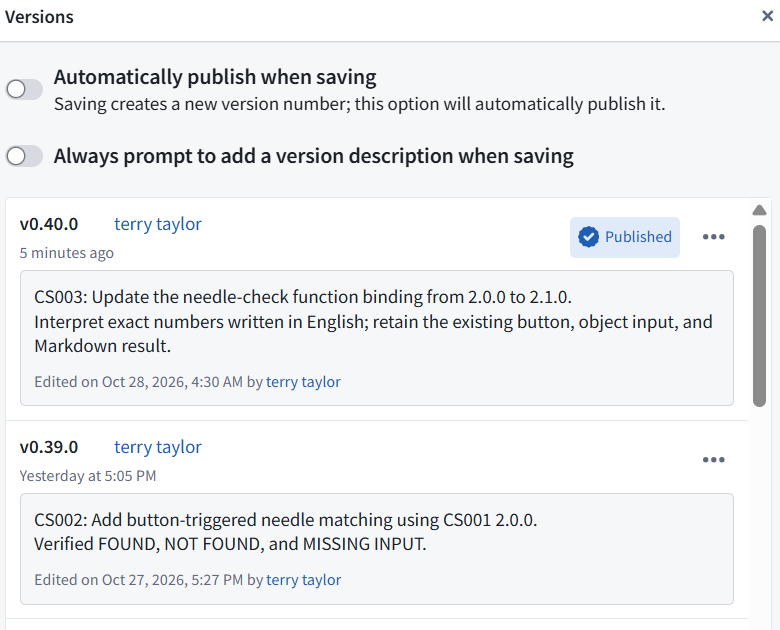
Publication verified: Workshop v0.40.0 now has the Published badge. Its description also correctly records the switch to function 2.1.0.
Final CS003 test
Close Versions using the dialog’s top-right ×.
Click View.
Confirm the runtime version is v0.40.0.
Select the object with:
String: The total is Six hundred and eighty for this week.
Integer: 680
Press FindNeedle.
Expected: FOUND. Send the result so we can mark CS003 complete.
Publication procedure we verified in your UI:
Save → creates a numbered Workshop version
Versions → that version’s … → Publish this version
ME: (screenshot)

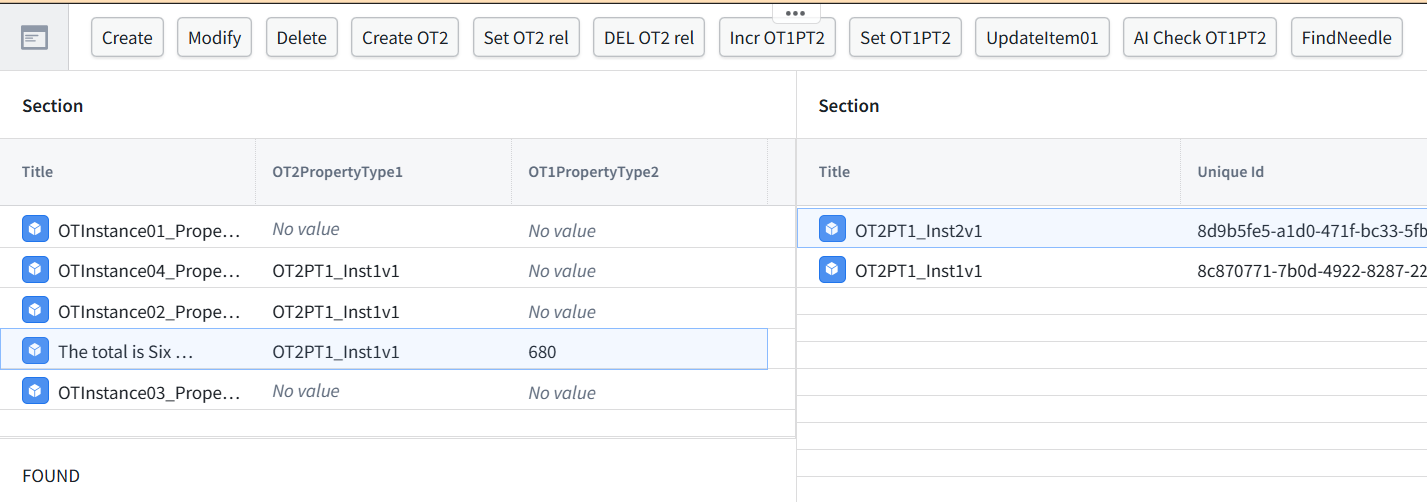
CS003 is complete. Your screenshots verify:
Running Workshop version: v0.40.0, published.
Selected object’s integer: 680.
Result after FindNeedle: FOUND.
CS003 — What we built
Changed the AI search from literal substring matching to interpreting numbers written in English, while retaining the same object properties, button, and result widget.
For the same test data:
String: The total is Six hundred and eighty for this week.
Integer: 680
FDE: The deployment lesson
Two separate publications were required:
Publish AIP Logic function 2.1.0.
Select 2.1.0 in Workshop, save UI v0.40.0, then publish that UI version.
The temporary × mistake was repaired. The old published UI—not the restored binding—was the issue we resolved.
Next is CS004: supply editable human-language criteria as an input, so the user can change the search criteria without republishing the function for every search.