3b.3.11 AI integration demo Slack
These are the lab notes for this demo from docx #609 on Gdrive.
See also Demo (old).
TOC
- 0 Overview
- 1 Concepts
- 2 requirements (MCP only for Claude Enterprise or Team plan)
- 3 create slack free account (web based)
- 4 config slack for claude (install/connector)
- 5 S3 Integrated AI agent (ai agent inside target)
- 6 Python script and test
0 Overview
- This is the first real Integrated AI agent inside enterprise software demo.
- GPT supplied directions/py-script worked the first time (no errors).
- This page just shows the what I did.
- It would take a while to wrap your head around the convoluted steps required to get this working.
- but you dont need to understand the convoluted dialogs, terminology, etc.. because GPT does it for you.
- in any case, here is a basic diagram of what this does.
1 Concepts
1.1 what we will do (S3 in slack)
S3 Integrated AI agent (ai agent inside target)
This is your S3: Slack UI → your Slack App → your Python Agent → OpenAI → Slack reply
I’ll give you the simplest S3 path: a Slack App/Bot that receives @MyAgent mentions, calls OpenAI, and replies in Slack.
S3 Slack Integrated AI, use Slack Bolt + Socket Mode so you do not need a public web server. Slack’s Socket Mode lets your app receive Events API traffic over WebSocket instead of exposing an HTTP endpoint.
The capabilities of an AI system are determined much more by its integration architecture and granted permissions than by the frontier model itself.
1.2 Diagrams
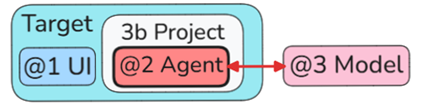
This diagram is the general diagram for S3-type demos. It shows a target system (enterprise SW) that has an AI agent added within the target. This agent is the only part of the 3b Project. An external LLM model is used for AI.
General S3 diagram
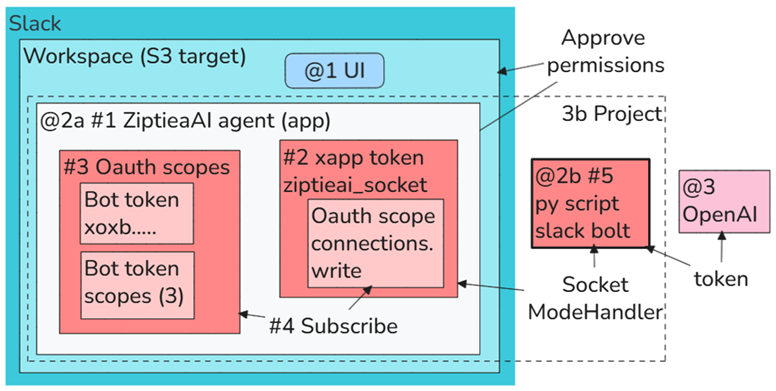
This is the same S3 diagram, but for the Slack AI demo. The detail are described on page 3b.3.11 AI project 11 Slack.
Slack AI project diagram
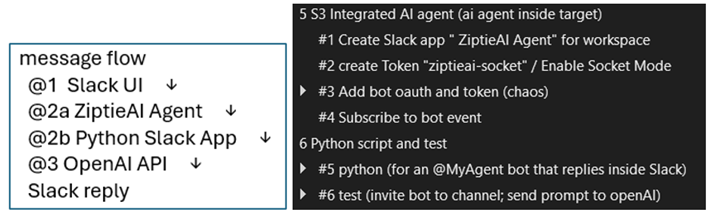
Below (left) shows the message flow and (right) the configuration steps.
Slack AI project message flow (left) and setup steps (right)
1.3 Code and results
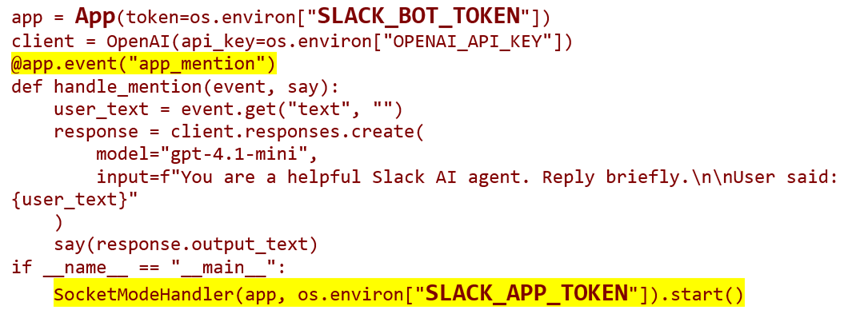
The following is the core py code (very simple).
15 code
Test results.
16 test results
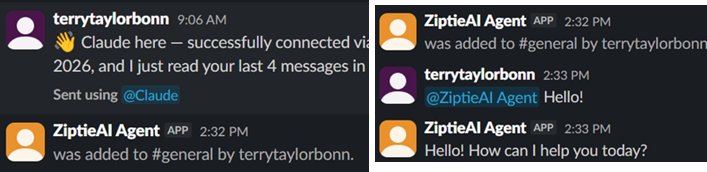
1.4 difference between legacy bot / tag
With the legacy bot:
•	You
    ↓
@Claude summarize this thread
    ↓
Claude replies
Claude acts only when you ask.

With Claude Tag:
•	You
    ↓
@Claude watch this discussion...
Claude has richer integration with Slack and can use the context of the conversation more effectively, but it still operates within the permissions and capabilities the integration provides.

For your architecture, I'd think of it this way:
•	Legacy Claude bot: interactive chatbot.
•	Claude Tag: integrated AI teammate with richer context and permissions.
•	Scheduled daily jobs: an automation capability that may be provided by the platform or by an external agent, but it's a separate concept from @Claude itself.
In fact, your own Python agent could implement daily summaries today by running on a schedule and posting into Slack, regardless of whether Claude Tag is available.
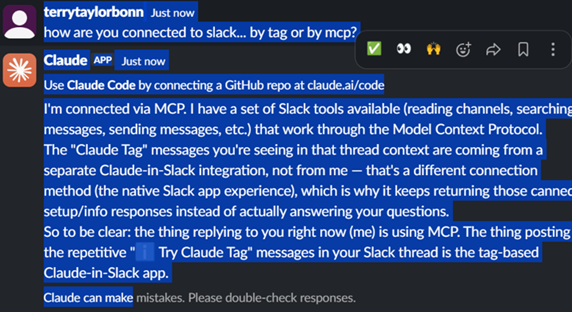
1.5 mcp connect (used in this demo) vs tag (future)
02
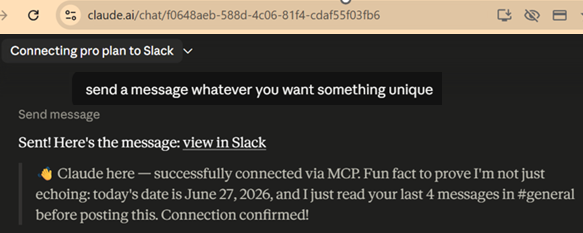
Or even more generally:
MCP >>> Human initiates.
Claude Tag >>>Human delegates.
With MCP, the interaction is typically request/response.
With Claude Tag, the goal is that you can say things like:
•	"Monitor this project."
•	"Every morning summarize this channel."
•	"Keep track of action items."
•	"Let me know when X happens."
1.6 About S4 in slack (different integration)
S4 (DB backdoor) needs self-hosted app like Odoo, Mattermost, GitLab, or local DB app would be better.
With slack: possible (but only in a limited way)
Because Slack is a cloud app, you usually cannot access its database directly. So S4 would mean:
•	Your Python CLI agent     ↓
Slack Web API     ↓
Slack workspace
You use your own command line, not Slack UI.
Example:
python slack_agent.py summarize #general
The agent reads Slack via API, calls OpenAI, then maybe posts a result back. So:
S3 = user talks to agent inside Slack
S4 = user talks to agent outside Slack
Slack still “knows” an app/API token is being used, but it does not know or care that AI is involved.
2 requirements (MCP only for Claude Enterprise or Team plan)
no web available (right) because only free subscription
It requires a Claude Enterprise or Team plan. If you're on Pro, Claude Tag isn't available to you yet.
3 create slack free account (web based)
4 config slack for claude (install/connector)
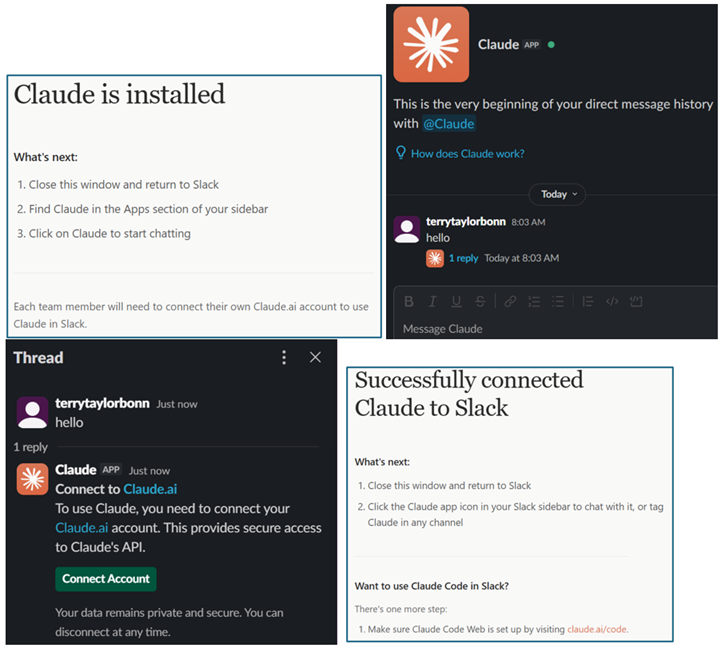
4.1 install claude in slack
03
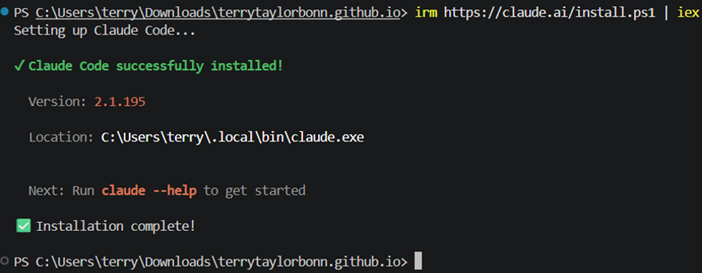
4.2 enable claude code
04
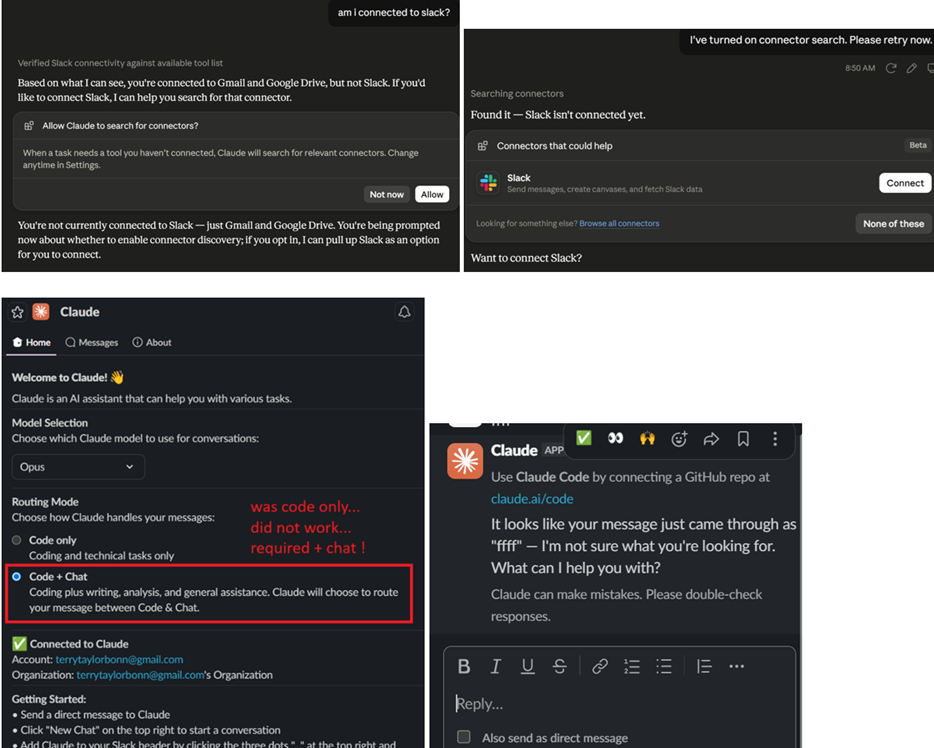
4.3 setup connector (required: code + chat)
05
06
5 S3 Integrated AI agent (ai agent inside target)
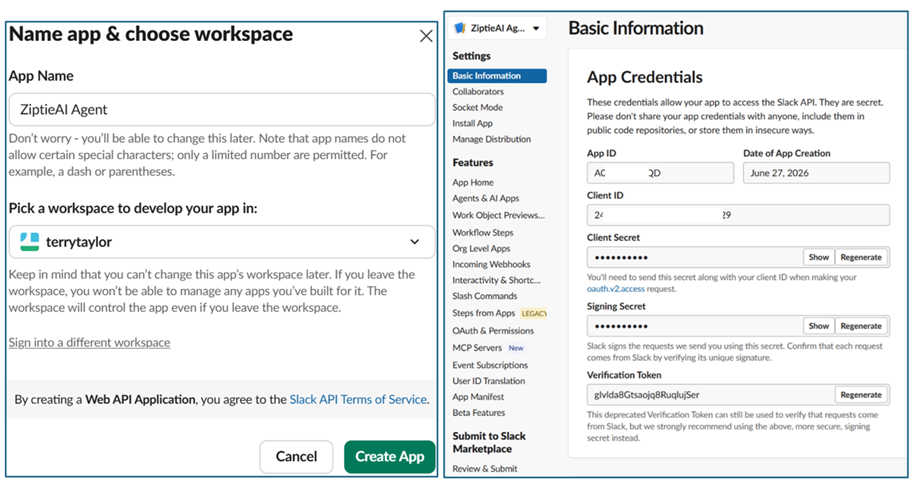
#1 Create Slack app “ ZiptieAI Agent” for workspace
Slack API → Your Apps → Create New App.
Go to: Slack API - Your Apps
Then:
1 Click Create New App.
2 Choose From scratch.
3 App Name:
    ZiptieAI Agent
4 Development Workspace:
    Select your Slack workspace.
5 Click Create App. Stop there.
https://api.slack.com/apps/A0BDJ4P2HQD?created=1
07
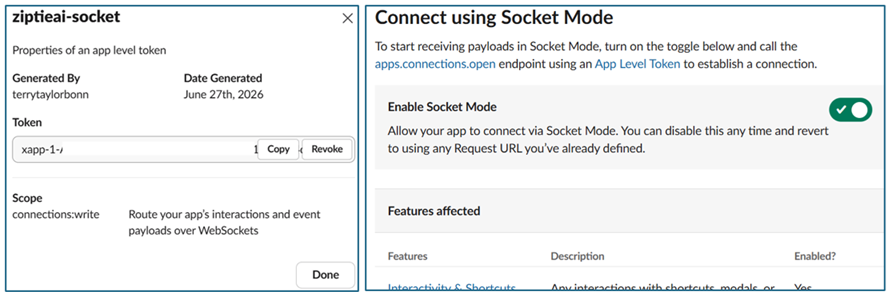
#2 create Token “ziptieai-socket” / Enable Socket Mode
https://app.slack.com/app-settings/T0Q3JHSGH/A0BEFR9NCSC/socket-mode

easiest development path because it avoids webhooks, HTTPS certificates, and public servers.

Next: enable Socket Mode.
1 In the Slack app settings, left sidebar: Socket Mode.
2 Turn Enable Socket Mode on.
3 Slack will ask for an app-level token.
4 Token name:
   ziptieai-socket
5 Scope:
   connections:write
08
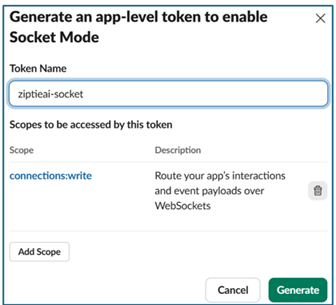
6 Click Generate.
7 Copy/save the token that starts with:

SLACK_APP_TOKEN="xapp-..."
09
#3 Add bot oauth and token (chaos)
https://app.slack.com/app-settings/T0Q3JHSGH/A0BEFR9NCSC/oauth
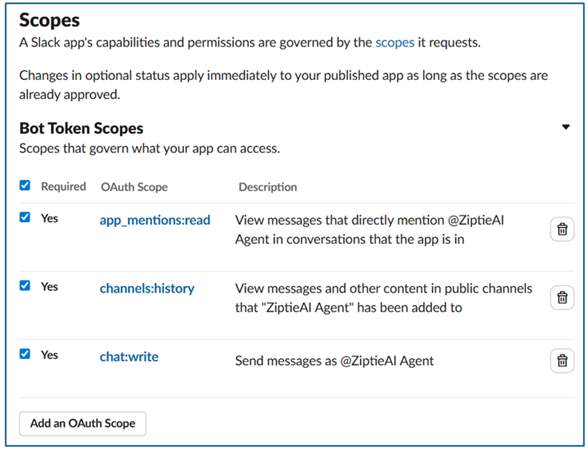
OAuth & Permissions page are: Bot Token Scopes
Click Add an OAuth Scope and add these:
•	app_mentions:read
chat:write
channels:history
10
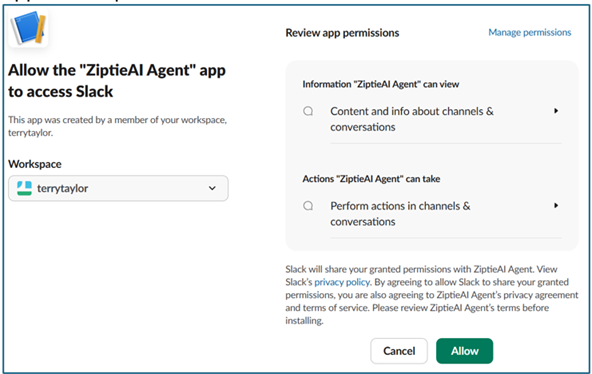
Install
Scroll to the top and click:
Install to Workspace
Approve the permissions.
11
Copy Bot Token
After installation, you'll see:
Bot User OAuth Token
12
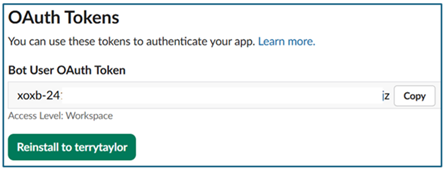
SLACK_APP_TOKEN=xapp-...
SLACK_BOT_TOKEN=xoxb-...
#4 Subscribe to bot event
enable the app_mention event

1 Left sidebar:
       Event Subscriptions
https://api.slack.com/apps/A0BEFR9NCSC/event-subscriptions
13
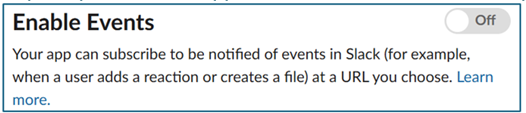
2 Turn:
   Enable Events ON
3 Because you're using Socket Mode, you do not need to enter a Request URL.
4 Scroll down to:
    Subscribe to Bot Events
5 Add one event:
app_mention
14
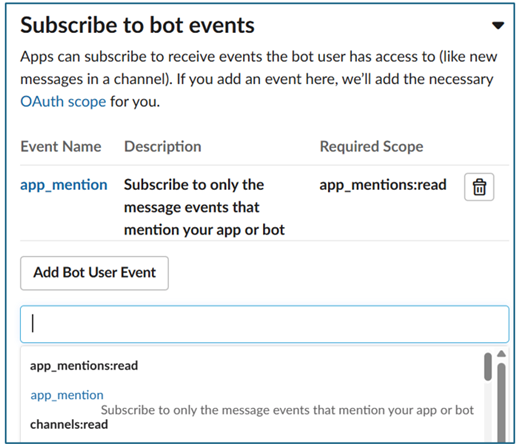
This tells Slack: if someone types @MyAgent send the event to my app."
6 Click Save Changes.
6 Python script and test
#5 python (for an @MyAgent bot that replies inside Slack)
The only remaining step is the Python program that listens for app_mention events and calls OpenAI.
SLACK_BOT_TOKEN=xoxb-...
SLACK_APP_TOKEN=xapp-...
OPENAI_API_KEY=...

slack_s3_agent.py
import os
from slack_bolt import App
from slack_bolt.adapter.socket_mode import SocketModeHandler
from openai import OpenAI
15
pip install slack-bolt openai
Downloading slack_bolt-1.28.0-py2.py3-none-any.whl (234 kB)
Downloading slack_sdk-3.42.0-py2.py3-none-any.whl (315 kB)
Installing collected packages: slack_sdk, slack-bolt
Successfully installed slack-bolt-1.28.0 slack_sdk-3.42.0
export SLACK_BOT_TOKEN="xoxb-..."
export SLACK_APP_TOKEN="xapp-..."
export OPENAI_API_KEY="sk-..."

python slack_s3_agent.py
Bolt app is running!
bot is connected to Slack (ME: its logically inside slack)
#6 test (invite bot to channel; send prompt to openAI)
1 Invite the bot to a channel, for example #general:
      /invite @ZiptieAI Agent

2 Then type:
Hello!

3 Python program
- receives an app_mention event,
- calls OpenAI, and
- posts a reply.
16
message flow
  Slack UI     ↓
  @ZiptieAI Agent     ↓
  Python Slack App     ↓
  OpenAI API     ↓
  Slack reply
26.0629 (0524)