2.4 Demo documentation creation/maintenence strategy
This page describes how I created and maintain the demo docs for demo D1. The result is perhaps not the prettiest text, until you actually try to use it.
GPT assessment: This is a good example of the practical value of AI. Maintaining screenshot-heavy technical documentation manually is tedious and error-prone. What was previously a substantial documentation-maintenance task becomes a simple, repeatable workflow. AI does not need to replace human intelligence to be revolutionary; eliminating this kind of tedious work is already transformative.
TOC
- Main workflow diagram
- 0 Create the demo v0 in Foundry / record steps/screenshots in docx v0
- 1 Create demo docx/md/PNGs v1 and publish to new ZAI webpage
- 2 Create and publish v2+
- 4 Notes (chats)
Main workflow diagram
The diagram below describes the demo doc workflow:
- v0. Create the demo in Foundry / record steps/screenshots in docx v0 (MS.Word).
- v1. Publish the initial md (website markdown) to ZAI (this is where most demo doc sites stop).
- v2+. Maintain (update) the content (accurately and efficiently). This is the tricky part that most demo doc sites skip (the main reason most content is difficult to maintain is (1) the writer does not use the SW being documented and (2) the existing content is incomplete/inaccurate, making it difficult to duplicate a demo).
The above workflow is only possible/practical with AI (GPT). I use AI to regenerate the Markdown, extract and rename the images, create the HTML image tags, package everything for the website, etc etc.
Demo doc creation/maintenance process (AI makes this process practical and reliable) (WIP)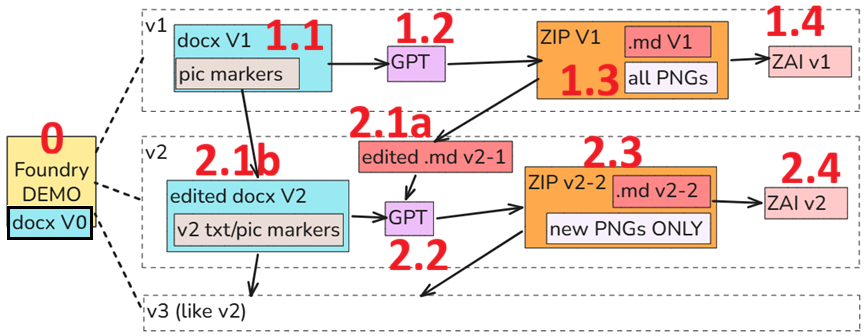
Created during the publishing process: (1) Docx source files (one for each chapter), (2) md files (generated by GPT), and (3) PNGs (extracted from the docx by GPT and named as specified in the docx)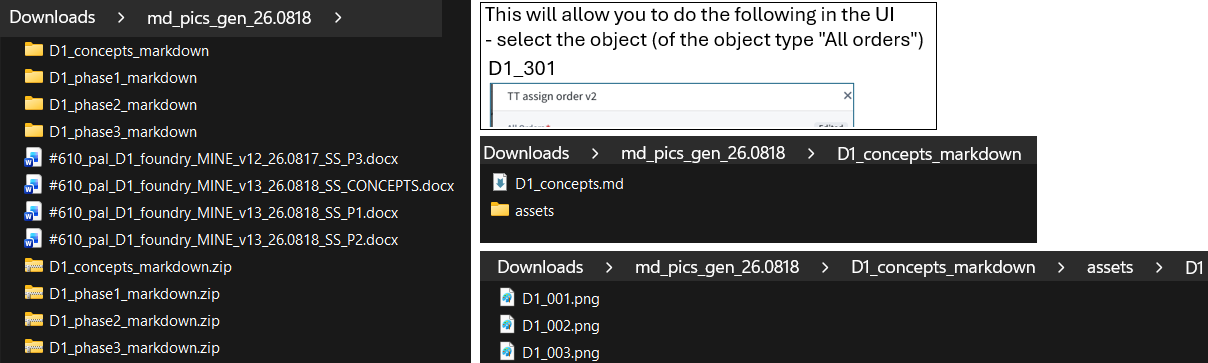
0 Create the demo in Foundry / record steps/screenshots in docx v0
The core focus for the ZAI demos:
- Simplest demos that demo core concepts.
Docx requirements:
- Accurate demo descriptions (text, screenshots, diagrams) that can be replicated.
- Minimal text/diagrams (maximum content).
- For demo D1 this is #610.
1 Create demo docx/md/PNGs v1 and publish to new ZAI webpage
- 1.1 Create v1 (chapter) docx’s (updated with everything required for GPT)
- 1.2 Prompt GPT to create markdown/PNGs v1
- 1.3 v1 ZIP contents
- 1.4 Publish v1 md/PNGs to ZAI / clean up
1.1 Create v1 (chapter) docx’s (updated with everything required for GPT)
How exactly markup the docx(s) you will give to GPT to generate an md file will be your decision. It depends on your particular needs. For Foundry D1 demo docs the most important thing I added was
- Image-ID markers (a unique marker such as “D1_301”). The main requirements for these markers:
- Unique format that GPT can easily distinguish (make sure that the text combo “D1_###” only appears in the doc as a text marker)
- Must be unique for each pic
- Other markings (I might write more about this later; basically you learn a few techniques to minimize the manual cleanup required for generated md file)
Note that I split up the docx into 4 chapter docx’s. This because I wanted a main webpage with 4 subpages.
4 docxs (left) and tag used to tell GPT the PNG filename (right)
1.2 Prompt GPT to create markdown/PNGs v1
For example prompts see “4.2 D1 demo doc generation (chats)”.
- GPT extracts the screenshots/diagrams, generates markdown (text), and zips for download.
- This is a reliable low-tech method that makes constant updates to the webpage practical.
- For simple changes simply regenerate/replace the entire text and any new/changed pics.
One issue I have not solved yet:
- PNG size. I could have asked GPT to analyze each pic and adjust the size accordingly, but I was afraid that that might be asking a bit too much for GPT to do on my $20/month cheapo subscription. I just spent a few hours manually correcting the pic sizes (this was also a good way to read through the entire generated md file).
1.3 v1 ZIP contents
ZIP contents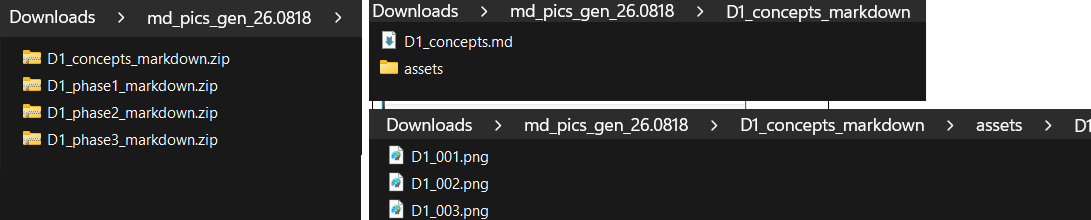
1.4 Publish v1 md/PNGs to ZAI / clean up
Inevitably you have to make changes in the md file. The idea of keeping the docx as the source file will not work. The biggest change I made was adjusting the PNG sizes.
2 Create and publish v2+
This workflow described in this section solves a major documentation problem: Screenshots and UI-heavy instructions become expensive to maintain when the product changes.
- 2.1a Working in md
- 2.1b Working in docx
- 2.2 Prompt GPT to update the edited markdown / create only new PNGs
- 2.3 v2 ZIP contents
- 2.4 Publish v2 md/PNGs to ZAI / clean up
Create and publish v2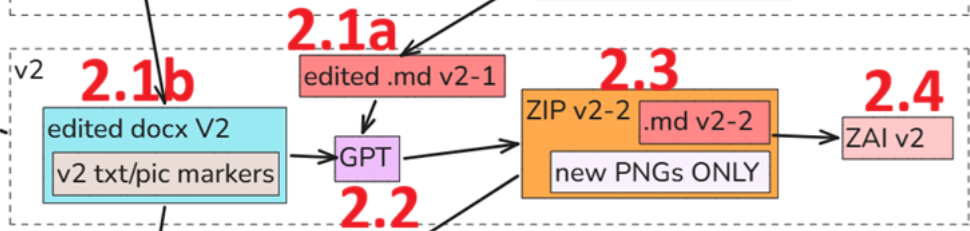
2.1a Working in md
- The md files have been edited (in VSCode for example).
- These files are the new source code (not the docx).
2.1b Working in docx
- Since the md files are the source, after v1 you must be careful to tag somehow any changes so that GPT knows what text to add/delete/modify in the md file.
- How exactly you do this does not matter, as long as it is designed so that GPT knows exactly what to do.
2.2 Prompt GPT to update the edited markdown / create only new PNGs
- Give GPT the .md and the docx and describe how to find docx changes.
- GPT updates the .md file.
- GPT extracts only new/modified PNGs.
- Important: You should verify the new version before pushing to the website.
2.3 v2 ZIP contents
Basically similar to v1.
- A complete new md file(s).
- PNGs.
2.4 Publish v2 md/PNGs to ZAI / clean up
Same as for v1.
26.0825 convert C1 in D2
ME: do you still have the steps you used to convert the last docx file i gave you into markdown? if you dont i can find it in my notes.
GPT:
Yes. I still have them from our work here, so you don’t need to find your notes.
For the last DOCX (Phase 1), the main rules were:
- DOCX → one Markdown file + PNG images → ZIP
-
Image marker such as
D1_320becomes:<img src="/assets/D1/D1_320.png" alt="xxx" width="..." style="border: 1px solid #999;"> - Use the existing
D1_###identifiers as PNG filenames. - Choose image width reasonably based on screenshot size/content.
- DOCX H1 →
# **xxx** - DOCX H2 →
### **xxx** - DOCX H3 →
#### **xxx** - DOCX H4 →
**xxx** - Add
<br>before H1–H3. - Ignore manual Word page breaks.
- Consecutive bullet items have no blank lines between them — this was the correction you made on the last conversion.
- Package
.md+/assets/D1/*.pnginto a ZIP.
So if you’re about to give me another DOCX, I can use the same conversion rules as the final Phase 1 version.
ME: Note: everything is D2, not D1.
GPT: Yes — everything for this new document should use D2, not D1.
So the image convention becomes, for example:
< img src=”/assets/D2/D2_001.png” alt=”xxx” width=”…” style=”border: 1px solid #999;” >
And the PNGs will retain your existing D2_001, D2_002, etc. identifiers from the DOCX. I can see those markers throughout the Concepts document you just uploaded.
I’ll use the same conversion rules as before, just with D2 throughout.
(9secs)
Done. Converted the D2 Concepts chapter using the same rules as before:
One Markdown file 13 PNGs: D2_001–D2_013 /assets/D2/… image references No blank lines between consecutive bullets Packaged into one ZIP Preserved the D2 terminology/content from your source.
Download D2 C1 Markdown + PNGs
4 NOTES
4.1 Managing docs (chats)
4.1.1 managing docs
(1) for v1 of the md files, you (GPT) simply convert to md+pngs. but i have to be careful about which file is the source file.
(2) if i just edit the docx file, then if i gave you both
docx md then you could probably figure out how to update the md file.
(3) as for any new pics, i should provide the unique filename as i do now for the png’s. you could avoid creating new pics for those that already exist.
(4) if i had been editing both md and docx, and the changes were minor, you could probably make a good guess as to how to resolve conflicts…. or at least you could alert me (and i resolve… like in git).
(5) there is one thing you probably can not do (at all or reliably)…. convert the md file into a docx.
GPT:
Yes. I think you have the beginnings of a very workable documentation maintenance system, and I would modify only one part of your assessment: #5 is more feasible than you think.
Your model could essentially be:
Initial generation: DOCX is authoritative → GPT generates MD + PNGs. This is what we’re doing now. Normal maintenance: Give me the current DOCX + current MD. I can compare them and update the MD rather than blindly regenerating it. This is actually better because it preserves any manual improvements you’ve made in the Markdown. Images: Your D1_101, D1_102, etc. system is excellent for this. The image identifier becomes a stable key. If D1_137.png already exists and the corresponding DOCX image hasn’t changed, there’s no reason to regenerate it. New D1_187 → create a new PNG.
Both files changed: This becomes very much like a lightweight Git merge. I can distinguish:
DOCX-only change → probably propagate to MD. MD-only change → probably preserve it. same section changed in both → conflict; either make the likely merge or flag it for you.
For important conflicts, I’d prefer flagging them rather than silently deciding. Something as simple as “CONFLICT: D1 section 4.5 differs materially in DOCX and MD” would work.
MD → DOCX: I actually can do this reasonably well, especially with your Markdown because it is deliberately simple and structured. Headings, paragraphs, bullets, bold text, links, and your references can all be converted back into a DOCX. The difficult part is achieving pixel-perfect round-trip fidelity—exact image positioning, Word-specific formatting, page breaks, styles, etc.
So I wouldn’t design the workflow around round-tripping:
DOCX ⇄ MD
I’d design it around:
DOCX → MD + PNGs
with the important addition:
current DOCX + current MD → intelligently updated MD
That gives you the best of both worlds. Word remains your comfortable visual authoring/master environment, while Markdown can accumulate website-specific improvements without getting destroyed every time you regenerate.
And your numbered PNG scheme is surprisingly important: you’ve effectively invented a stable identifier system for the graphical assets, which makes incremental synchronization much easier.
4.1.2 yes agreed. the problem is that docx file is binary i believe….
and i have written macros (30 years ago) for modifying word files.. it was a disaster, because ms.word is so messy internally. that’s why i doubt you can do it… becuase you cant do magic…
GPT:
Exactly. That skepticism is justified.
A .docx is technically a ZIP archive full of XML files, relationships, media, style definitions, numbering tables, section properties, drawing anchors, etc. So it is not a single opaque binary blob like the old .doc format, but the internal structure is still messy enough that reliable round-tripping is hard.
That is why the workflow we settled on is safer:
DOCX = authoring/master source MD = generated/published form
I can reliably do things like:
read paragraph text and heading styles detect lists extract images preserve your D1_### markers generate Markdown make modest edits to a DOCX when needed
What I would not trust casually is:
MD → reconstruct DOCX → edit again → reconstruct MD → repeat indefinitely
That is where formatting drift and Word-specific weirdness start accumulating.
So your instinct from 30 years ago still applies: avoid treating Word as a perfectly reversible data format. The nice part today is that we can use Word as the human-friendly source and automate the one-way publishing conversion instead of trying to tame Word internally.
4.2 D1 demo doc generation (chats)
PHASE 3 GEN
#610_pal_D1_foundry_MINE_v12_26.0817_SS_P3.docx
Document

(1) create markdown for the attached docx file.
one single webpage.
(2) png images conversion in this format
if text before image is "D1_320"
then
<img src="/assets/D1/D1_320.png" alt="xxx" width="25%" style="border: 1px solid #999;">
(2b) about the width above...
   it would be nice if you could try to set the width so that the pics are optimal size.
   best would be if the pic text size was slightly smaller than the text size on the resulting webpage.
   this is not critical however (i can adjust).
(4) convert docx headings to markdown headings like this:
(4.1) docx H1 -> # xxx
(4.2) docx H2 -> ### xxx
(4.3) docx H3 -> #### xxx
(4.4) docx H4 -> xxx (just bold)
(4b) Add " < b r > " (i have to add spaces or it wont be shown in our chat window;
    delete these space) before every Heading level 1-3.
(5) I added a lot of manual page breaks ... ignore them.
(6) package everything into a zip file.
Done. I created one Markdown webpage plus 20 PNG images, using the preceding labels as filenames (D1_301.png … D1_320.png) and /assets/D1/… paths. The DOCX section itself runs through the Phase 3 action workflow and final test.
I also estimated image widths individually from their displayed size in Word; for example, D1_301 is 35%, while wide screenshots such as D1_302 and D1_313 are 100%.
Download the ZIP
PHASE 2 GEN
#610_pal_D1_foundry_MINE_v13_26.0818_SS_P2.docx Document
please convert this phase 2 docx to markdown file + png’s -> zip like you did before for phase 3 docx.
GPT: Done. I converted the Phase 2 DOCX into one Markdown file plus 27 PNGs (D1_201–D1_227), packaged in a ZIP. The conversion follows the Phase 2 structure and numbering in your source document.
Download the Phase 2 ZIP
CONCEPTS GEN
#610_pal_D1_foundry_MINE_v13_26.0818_SS_CONCEPTS.docx Document please convert this “concepts” chapter docx to markdown file + png’s -> zip like you did before for phases 2 and 3 docx’s.
GPT: Done. I converted the Concepts chapter to one Markdown file plus 15 PNGs (D1_001–D1_015), using the same format as Phases 2 and 3. The source chapter runs from C1 through C6.
Download the Concepts ZIP
PHASE 1 GEN
#610_pal_D1_foundry_MINE_v13_26.0818_SS_P1.docx Document
please convert this “phase1” chapter docx to markdown file + png’s -> zip like you did before for concepts, phases 2 and 3 docx’s (this is the last chapter to do… its got a lot of png’s). NOTE: in the previous versions, the bulleted lists in the .md file had a line between each bullet (see attached pic1) . in general should be like in pic 2. not a big deal in any case.
GPT: Done. I converted the Phase 1 DOCX into Markdown plus 83 PNGs, packaged in a ZIP. I also fixed the bullet formatting so consecutive bullets appear together without blank lines, like your second screenshot. The source chapter covers the Phase 1 pipeline/ontology setup and uses the same numbered chapter scheme you described.
Download the Phase 1 ZIP
26.0820 (v1 26.0818)